.png)



Google Groups is one of the most powerful (and misunderstood) tools inside Google Workspace.
At its best, it helps teams manage shared communication, control access to resources, and coordinate work without endless forwarding or CC chaos. At its worst, it creates noisy inboxes, reply-all disasters, and groups no one wants to touch anymore.
The difference comes down to how you configure and use it.
In this guide, we’ll walk through practical Google Groups do’s and don’ts to help you use the tool cleanly, intentionally, and without overwhelming your team.
Why Use a Google Group?
A Google Group is more than a mailing list. Depending on how it’s configured, it can function as:
- A shared inbox for team emails
- A discussion forum or Q&A board
- A distribution list for announcements
- A permissions layer for Drive, Calendar, or Sites
- A lightweight collaboration hub
When set up correctly, Google Groups reduces friction and centralizes communication. When set up poorly, it multiplies inbox noise and responsibility confusion.
That’s why configuration choices matter.
Google Groups Best Practices: 10 Practical Do’s
1. Do use the Collaborative Inbox type for shared addresses
If you’re creating addresses like support@, sales@, or info@, always choose Collaborative Inbox.
This allows members to:
- Assign conversations to one another
- Mark threads as resolved
- Avoid duplicate replies
Without this setup, teams quickly fall into “Who’s handling this?” territory.
2. Do set a clear subject prefix
Adding a subject prefix like [Support], [HR], or [Project Alpha] immediately tells members where a message is coming from.
This helps people:
- Scan their inbox faster
- Set filters if needed
- Prioritize without opening every email
3. Do configure Post replies to intentionally
Not every group should allow reply-all.
- For discussion groups, “Entire group” is fine
- For announcements, Q&A, or leadership updates, use “Author” or “Managers only”
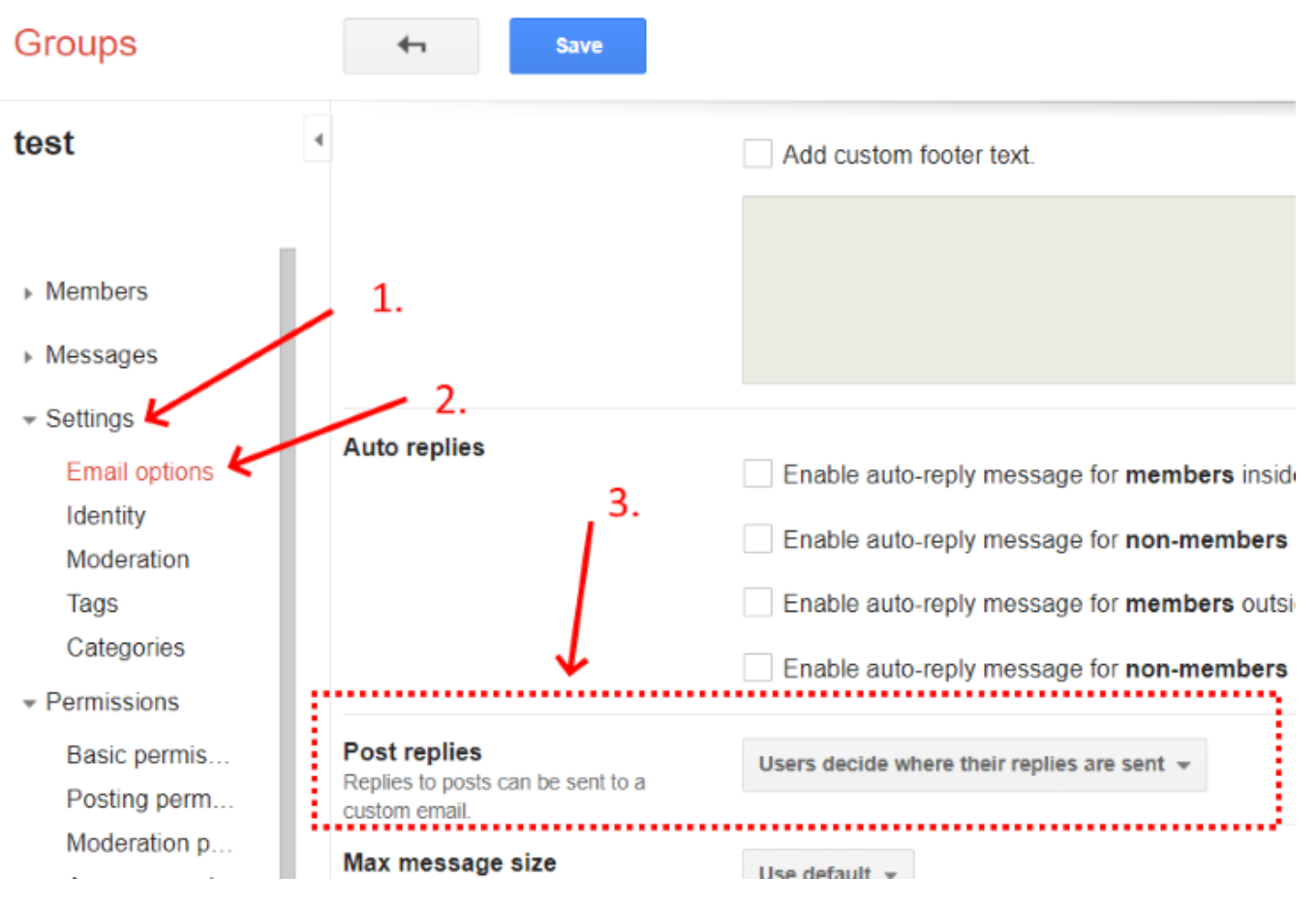
This setting single-handedly prevents email storms.
4. Do enable message moderation for external posting
If a group allows emails from outside the organization, moderation is essential.
Without it, spam and accidental junk will hit everyone’s inbox.
At minimum:
- Moderate messages from non-members
- Or moderate all messages for sensitive groups
5. Do create a welcome message
The welcome email is your chance to set expectations. Use it to explain:
- What the group is for
- Posting and reply rules
- Subject prefixes
- How to adjust delivery settings
This will help reduce confusion before it starts and will avoid unnecessary interactions.
6. Do follow consistent naming conventions
For businesses with multiple groups, naming discipline matters. Clear names reduce accidental posting and admin pain.
Examples:
- access- for permissions
- distro- for announcement lists
- collab- for shared inboxes
- org- for company-wide updates
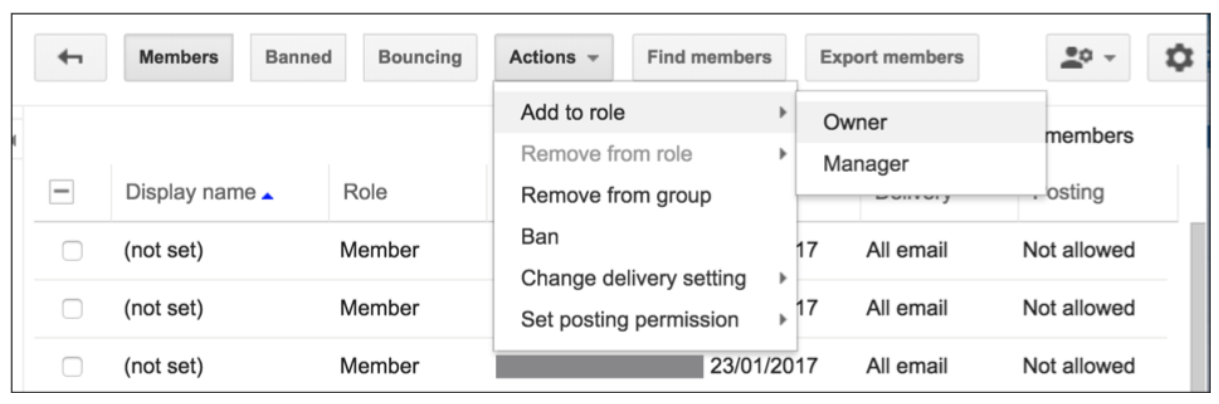
7. Do assign more than one owner
This is one of the most overlooked mistakes. Every group should have at least two owners. If a sole owner leaves the company or loses account access, the group becomes extremely difficult to manage or delete.
8. Do use groups to manage access to Drive and Calendar
Instead of sharing files with individuals, share them with the group email.
Benefits:
- Easier onboarding and offboarding
- Cleaner permissions
- Fewer access errors
Add someone to the group, and they automatically gain access.
9. Do use conversation history strategically
- Disable history for sensitive or temporary topics
- Enable it for projects, decisions, and discussions
Archived conversations become a searchable record of institutional knowledge.
10. Do audit group members regularly
Quarterly audits help ensure:
- Former employees no longer have access
- External collaborators are removed when projects end
- Groups don’t grow silently out of control
This is especially critical for groups tied to permissions.
Google Groups: 10 Practical Don’ts
1. Don’t use the wrong group type
If your team constantly replies “I’ll take this” or “Who’s on it?”, you’re using the wrong setup.
A mailing list won’t behave like a shared inbox.
For teams that need clearer ownership, visibility, and workflows, this is where tools like Gmelius offer a better experience while still supporting Google Groups addresses.
2. Don’t allow Anyone on the web to post without moderation
This is an open door to spam. Only enable public posting if:
- The group is meant to be public
- Moderation is turned on
Otherwise, inboxes will suffer.
3. Don’t add people without consent
Directly adding someone to a high-volume group is a fast way to cause resentment. Always use invites so people can:
- Choose their delivery preferences
- Understand what they’re joining
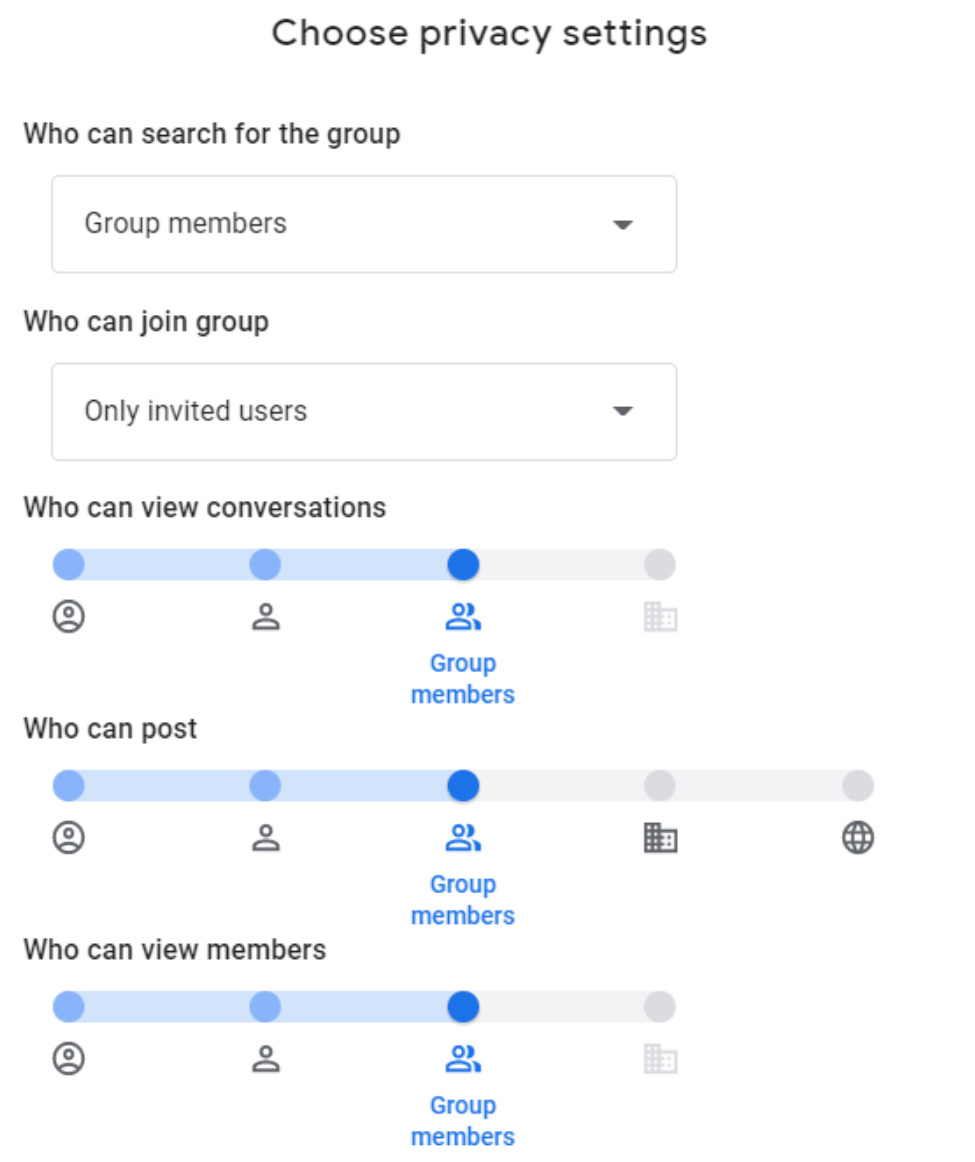
4. Don’t expose member lists unnecessarily
Check the Who can view members setting. Internal groups should not expose employee or customer lists to the public web accidentally.
5. Don’t reply by starting a new thread
Reply within the existing conversation whenever possible.
Starting a new thread for a reply:
- Breaks context
- Confuses archives
- Fragments knowledge
6. Don’t attach large files
Attachments multiply storage usage across members’ accounts.
Instead:
- Upload files to Drive
- Share with the group
- Paste the link
It is cleaner and more scalable.
7. Don’t set your delivery to ‘No email’ unless intentional
“No email” means no awareness. For most members, daily digest or abridged delivery is a safer default that still keeps them informed.
8. Don’t use Google Groups as file storage
Google Groups archive conversations, not documents. They’re not designed for structured file storage, version control, or reliable recovery. Your single source of truth should always be a shared Drive, and, ideally, a backup layer like Backup Space, which automatically backs up your Google Workspace data so files can be restored easily if something is deleted, overwritten, or lost..
9. Don’t use vague subject lines
Subjects like “Help” or “Urgent” are meaningless later. Be specific and searchable:
[Project Alpha] Error 503 on staging. This saves time now and in the future.
10. Don’t delete groups when projects end
Deleting a group deletes its history.
Instead:
- Disable posting
- Restrict permissions
- Archive the group
This helps preserve valuable context in case you need it.
All the Collaboration, None of the Confusion
Google Groups can absolutely work, but only when configured intentionally. As teams scale, inbox-based collaboration often needs clearer ownership, transparency, and automation than Groups alone can offer.
Tools like Gmelius build on Google Workspace by turning shared inboxes into structured workflows with:
- Clear assignments
- Shared labels
- Automation
- AI-powered sorting and replies
All inside Gmail, with no scripts or complexity. If your Google Group is starting to feel more chaotic than helpful, it may be time to evolve how your team works, without abandoning Gmail.


.avif)

.avif)

.avif)
.avif)