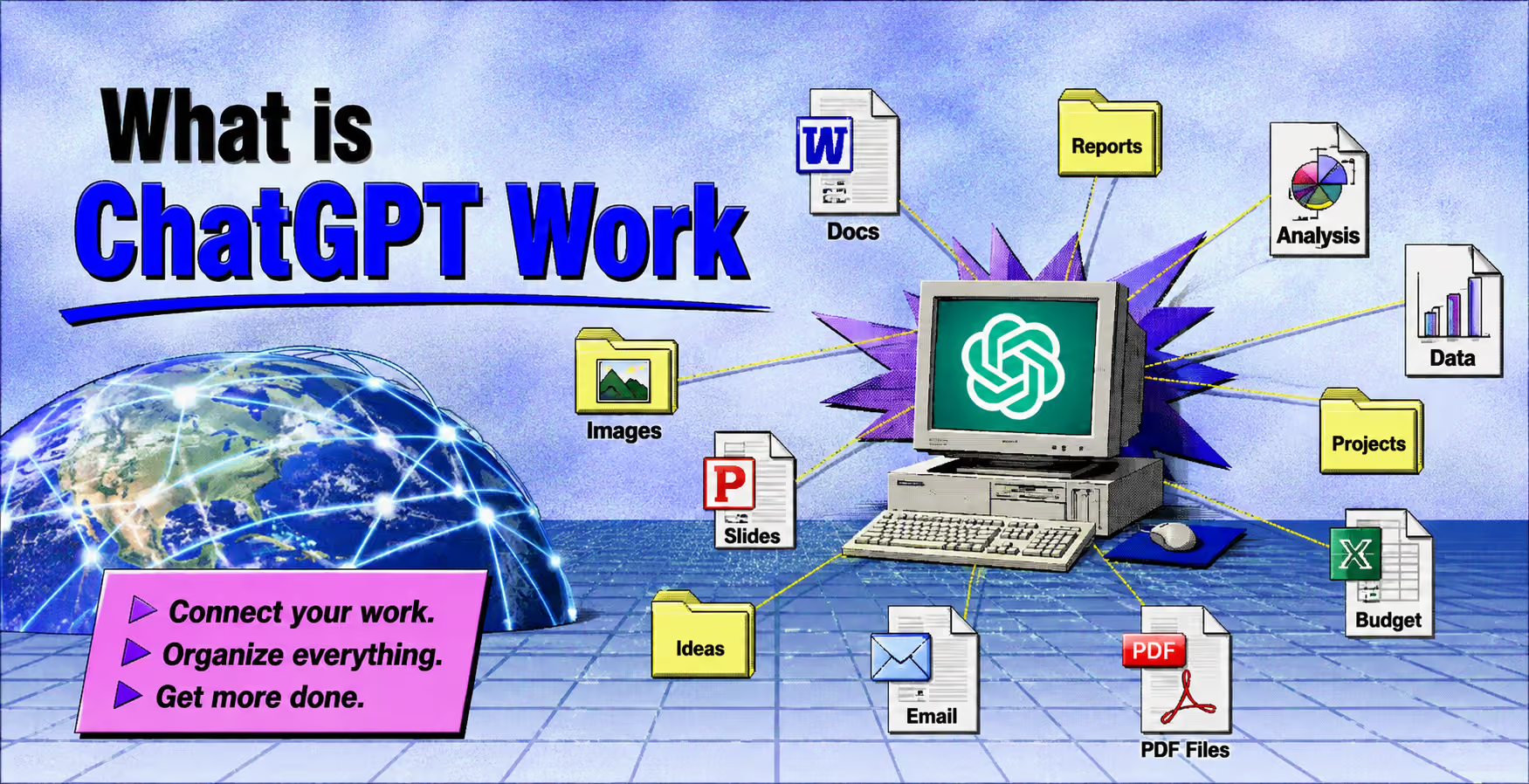



If you have opened ChatGPT recently and noticed a new Work option at the top, you may be wondering what it is actually for.
The easiest way to think about ChatGPT Work is that it is designed to help you complete a piece of work, rather than simply answer a question. You can give it a goal, provide the files and information it needs, and let it work through the task. The result can be a presentation, spreadsheet, document, report, or analysis that you can actually use.
That makes Work particularly interesting if you are trying to understand how do AI agents work in everyday business situations. Instead of asking an AI a question and getting a response, you give an AI agent a job and let it work through the steps needed to complete it.
There are some things to know before getting started, though. Access depends on your plan and device, and usage limits can affect how you use Work.
What is ChatGPT Work?
There are a few different ways to use ChatGPT, and they are designed for different kinds of work.
Chat is generally the place for questions, explanations, brainstorming, and shorter writing tasks. Work is aimed at longer jobs where you want to end up with a finished deliverable. Codex remains focused on development work such as repositories, testing, and code review.
ChatGPT Work is an agentic interface built on Codex technology that helps achieve work-related tasks, specifically, automated file generation with (optional) integration with your desktop.
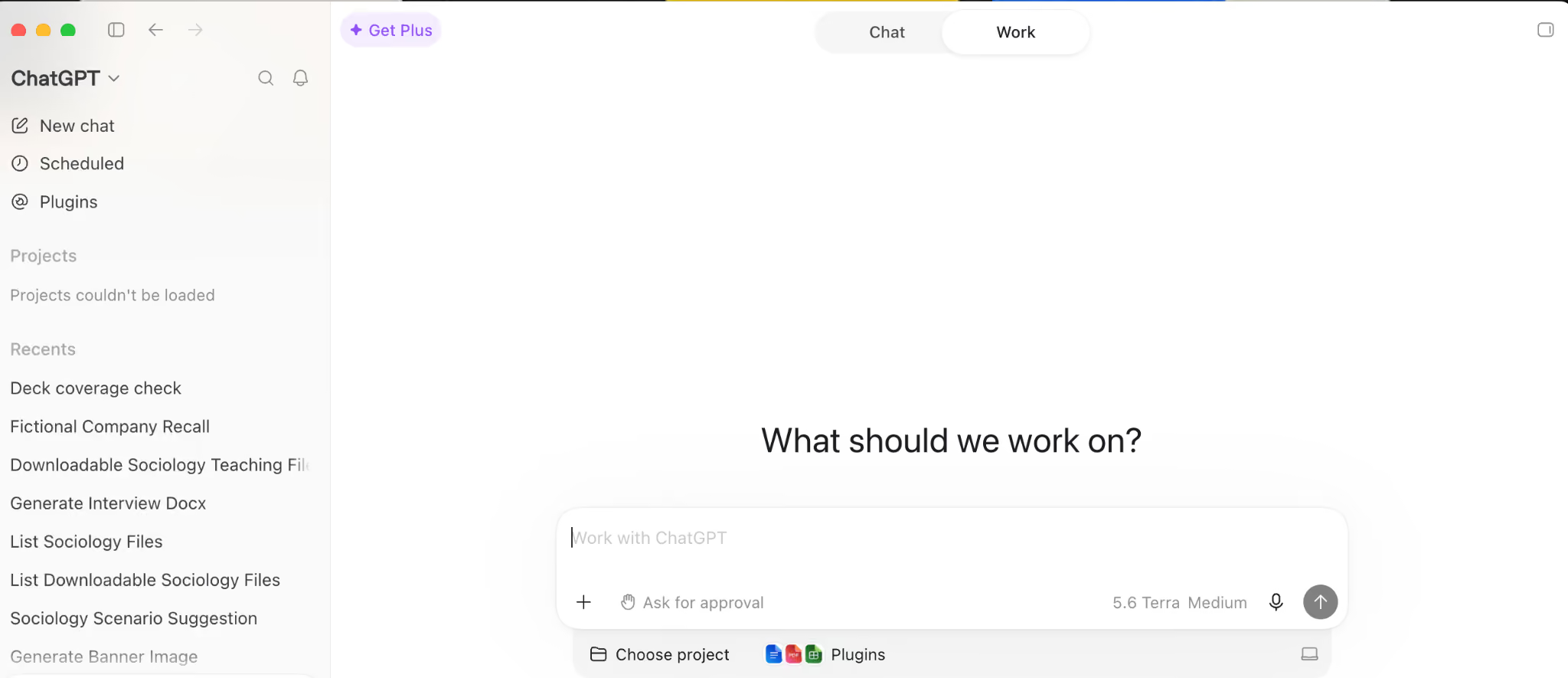
That’s why Work feels different from an ordinary ChatGPT conversation. It is built around completing a task, working through several steps, and producing a result. The model behind it is GPT-5.6, which OpenAI says is designed to handle multi step tasks more effectively and follow users' templates and reference files more closely.
How do AI agents work?
The basic idea is fairly simple.
You give the AI agent a goal. It gathers the information it needs, makes a plan, works through the task using its available tools, and comes back to you when it needs approval or has finished.
That is what separates an agent from a regular chatbot.
A normal conversation might give you an answer and stop there, but an agent is able to keep working through a task, use information from different sources, adjust its approach when something changes, and continue until the work is finished.
Where you start the session can also make a difference. Cloud sessions (browser based) can continue even after you close your laptop, while local sessions in the desktop app can work with files and applications on your own computer.
What Can ChatGPT Work Do?
A lot of the individual things Work can do were already possible with ChatGPT. The difference is that you no longer have to manage every step yourself.
Instead of researching something, copying the information into another conversation, building a spreadsheet, and then formatting a presentation yourself, you can give Work the overall assignment and let it handle more of the process.
It produces the actual file
You can use it to create spreadsheets, presentations, documents, reports, and analyses based on the files and templates you provide. For example, you could give it a previous presentation and a set of research documents and ask it to create a new presentation using the same structure.
The finished work can then be opened in tools such as Excel, PowerPoint, Sheets, or Slides.
Unlike regular ChatGPT (which can also produce files), ChatGPT Work automatically saves the file inside your preferred folder if you’re using the AI agent for free from the desktop application.
Work also includes Sites. These are interactive pages or small web apps that can be shared through a URL. They can be useful for things such as dashboards, project trackers, or launch calendars, particularly when the underlying information needs to be updated.
ChatGPT Work vs Claude for work
The difference becomes more interesting when you look at ChatGPT vs Claude. Claude Cowork uses Artifacts that remain connected to the work inside the session. Work is more focused on producing editable office files and hosted Sites.
Now, that distinction may not matter if you simply want an answer. It matters much more when the final output needs to become something your team can edit, share, or publish. In many ways, Claude Cowork is both more powerful and more complex to use, but you can decide for yourself in our Claude vs ChatGPT guide.
It can work with the tools you already use
One of the more useful parts of Work is its ability to connect with other applications.
These can include Slack, Microsoft Teams, Google Drive, SharePoint, email, calendars, CRM systems, and project management tools. The unified directory includes more than 1,400 plugins, with applications such as Salesforce, Zoom, Canva, Dropbox, LinkedIn, GitHub, and Adobe Acrobat among the featured options.
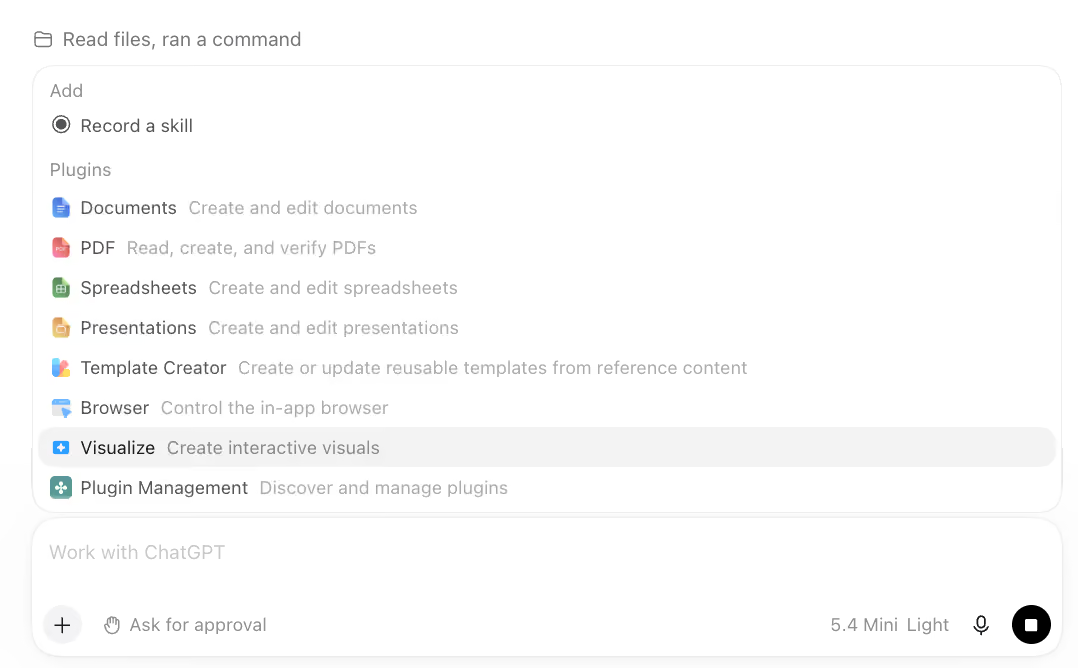
ChatGPT can usually figure out which plugin is relevant to a task. You can also type @ followed by the application name when you want to tell it exactly which tool to use.
This is important for using AI agents in real work because you do not necessarily have to collect every piece of information and upload it manually first.
It can keep working while you are away
Scheduled Tasks are useful when something needs to happen regularly or needs to be monitored over time. For example, you could have Work review new Slack updates each week and update a meeting agenda, or check a dashboard every morning and tell you what has changed since the previous day.
These are often good tasks to give an agent because they are repetitive and easy for a person to forget.
It can use your browser and desktop
The desktop app also gives ChatGPT access to browsing capabilities, so it can research information, compare sources, and work with files from services such as Google Workspace and Microsoft 365.
Computer Use permissions take this a step further. The AI agent can interact with your computer by clicking and typing across applications and websites. That makes it possible to use Computer Use for individual tasks or as part of a Scheduled Task.
How to Access ChatGPT Work: Step-by-Step Guide
Here’s how to access ChatGPT Work, and yes, it’s available as part of the ChatGPT free plan.
Step 1: Check whether you have access
On the web and mobile, Work is available to Plus, Pro, Business, Enterprise, and Edu subscribers, but the desktop app works differently. Chat, Work, and Codex are available across every tier there, including the ChatGPT free plan. If you are using the Free plan, the desktop app is therefore the main way to access Work.
Step 2: Install or update the desktop app
The desktop app is available for Mac and Windows. If you previously used the standalone Codex app, updating it turns it into the new ChatGPT desktop app. The previous ChatGPT desktop app has been renamed ChatGPT Classic. Note that if you’re a developer, you can still make Codex the default view and use the Codex logo as the app icon.
Step 3: Switch to Work
On desktop, open the ChatGPT menu in the top left and select Work from the toggle at the top of the page. On mobile, Work can be selected from the dropdown at the top of the screen.
On the web, select Work directly. Your Chat and Work conversations appear together in Recents. You can filter, sort, and pin them, while existing Projects continue to be available. If you start a Work conversation from inside a Project, it can use that Project's existing context and files.
Step 4: Choose local or cloud
The desktop composer includes a Work locally option. If your task needs files or applications stored on your computer, local mode is the appropriate choice.
Cloud is more useful when you want the session to continue after you close the app, when you want to pick it up from your phone, or when you are setting up Scheduled Tasks.
Step 5: Install the plugins you actually need
You can find plugins in the left sidebar, but there is no real advantage to connecting every application available. The useful ones depend on what you actually do. A marketer, for example, may need a different set of tools from someone working in finance.
You can also use @ followed by an app name when you want to specify a particular plugin in a prompt. Keeping unnecessary plugins disabled can also help reduce the amount of context being added to your tasks.
Step 6: Start with something familiar
If this is your first time using Work, start with a task you already know how to do. A budget variance report is a good example. So is a campaign brief based on research you have already read. This makes it much easier to judge whether the result is actually good.
Instead of saying: Create a presentation about customer research, you could tell it which files to use, who the presentation is for, how many slides you want, how findings should be separated from recommendations, and which claims should be flagged if the sources do not support them.
The second prompt gives the agent a much clearer definition of success.
Step 7: Watch it the first time
You can follow Work's progress, answer questions, change its direction, and approve actions when necessary. There is also Auto review, which allows stronger models to review certain consequential actions involving connected tools before they happen.
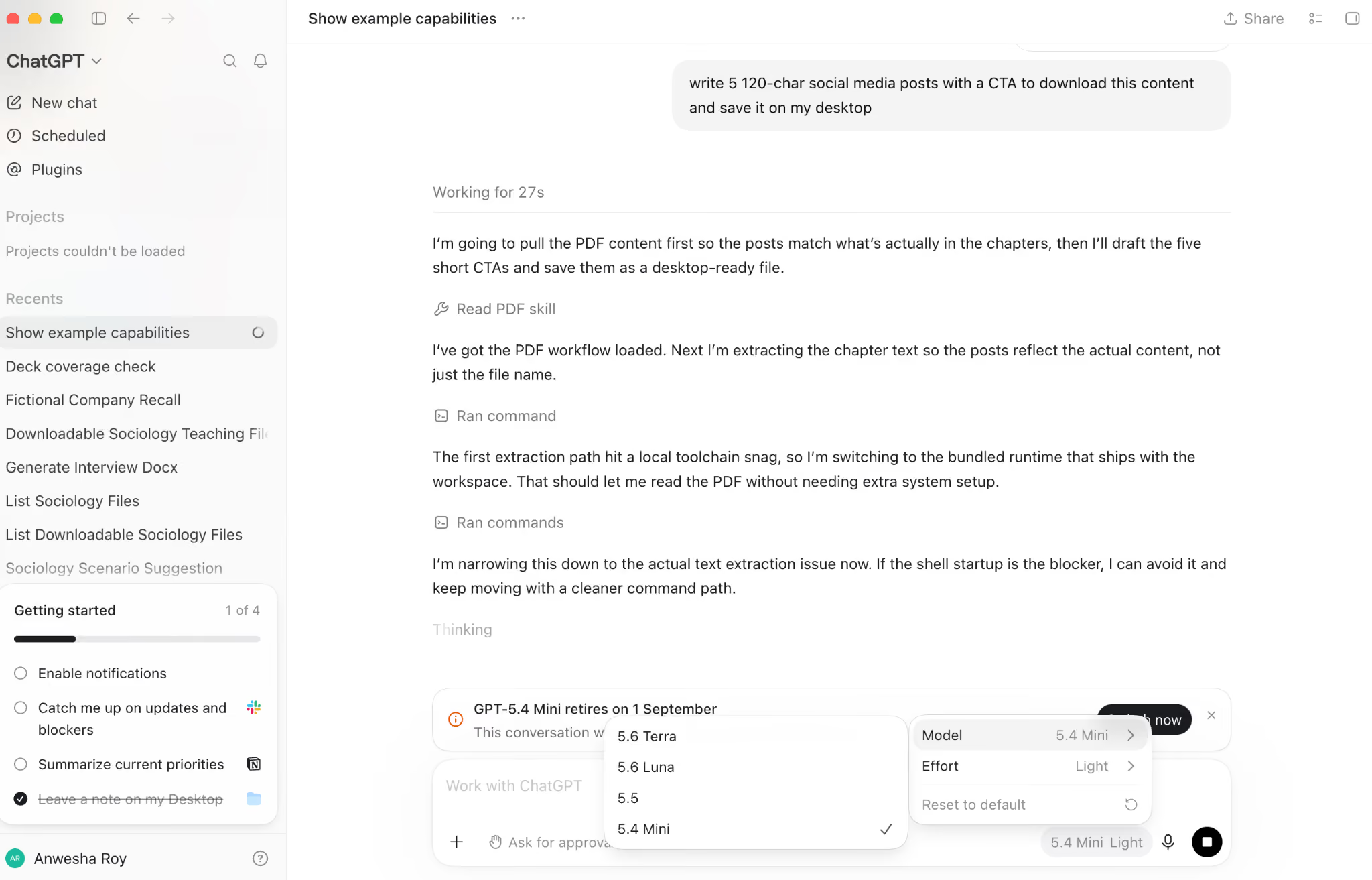
If you are trying to understand how do AI agents work, your first supervised session can be particularly useful. You can see what the agent gets right, where it makes mistakes, and which parts of the task still need your attention.
If you are the administrator
Workspace administrators can manage access through Workspace settings, followed by Permissions and roles. Work Cloud and Work Local have separate controls, so an administrator can allow local work without allowing cloud tasks.
Enterprise and Edu workspaces also have additional requirements, including Enterprise Key Management before Work becomes available. Administrators can manage spending through the Admin Console, including workspace defaults, group limits, and individual overrides.
ChatGPT Work Hacks for Productivity: 5 Tips and Tricks
When using ChatGPT Work for the first time, use the following tips:
1. Write the brief like you would brief a contractor
A good brief makes a big difference when you are using AI agents. Explain what you want, which sources it should use, which tools it should access, what restrictions it needs to follow, and what the finished result should look like.
It is also worth telling it when to stop.
For example:
Use only the sources I provided.
Or:
Stop before sending anything and ask me for approval.
These kinds of instructions can prevent the agent from going further than you intended. They can also save usage. If the task is vague, the agent may spend time looking through information that was never necessary.
2. Match the model to the job
GPT-5.6 comes in three variants, and each is intended for a different type of work. Sol is aimed at difficult reasoning and high stakes decisions. Terra is intended for everyday production work such as reporting and document analysis. Luna is better suited to faster, higher volume tasks such as classification and extraction.
You do not necessarily need the most powerful model for every job. Using Terra or Luna for routine work can leave more of your allowance available for tasks where Sol is genuinely useful.
3. Give it your templates
One of the easiest ways to improve the result is to give Work examples of what you already use. If your company has a particular presentation format or reporting structure, attach an old version rather than trying to describe the format from scratch.
GPT-5.6 is designed to follow reference files and templates, so providing an example can reduce the amount of formatting you need to fix afterwards.
4. Automate recurring reviews
If you find yourself typing essentially the same request again and again, it may be a good candidate for a Scheduled Task. For example, a Monday morning task could review updates from Slack and Drive and turn them into a meeting agenda containing decisions, blockers, and owners.
This is one of the areas where using AI agents can make a noticeable difference. A task that takes a few minutes every morning can become something you set up once and let the agent handle.
5. Keep Chat and Work in their own lanes
Not every task needs Work. If you want a quick answer, a short rewrite, or a simple explanation, regular Chat is usually faster and more appropriate. Work makes more sense when there is a larger task to complete, particularly when you need a finished file or want the agent to work through several steps.
The same idea applies when looking at ChatGPT vs Claude. Agent based work generally uses more of your available usage than a normal conversation, so it helps to use it where it provides a real benefit.
Does ChatGPT Work Have Limits?
Yes. The limits are a little more complicated than simply counting messages.
ChatGPT Work and Codex share their usage structure. Local messages and cloud conversations use the same five hour rolling window, with weekly limits on top of that.
Usage is also affected by how much work the agent actually performs. OpenAI puts GPT-5.6 at an average of five to 30 credits per message, although the model, context length, and tool calls can all affect that number.
Image generation uses the allowance faster than comparable text work. The ChatGPT free plan has the most restrictions. Work is desktop only, while cloud conversations and web access require a paid tier. Image generation is also unavailable on Free.
Some features have regional restrictions as well, including Computer Use, the Chrome extension, and Record and Replay. If Plus or Pro users reach their limits, additional credits can be purchased rather than immediately moving to another plan.
There is another limitation that is easy to overlook: getting a result quickly does not mean the result is correct.
An agent can produce a 40-slide presentation in a fraction of the time it would take a person to build it. You still need to check those slides. In many cases, reviewing the work becomes the most important part of the process.
An AI Chief of Staff like Meli by Gmelius can also provide AI agents with the context it needs to perform tasks more accurately.
That is also worth remembering when considering ChatGPT vs Claude. Both can work through complex tasks quickly, but neither removes the need for human review or contextual information.
Can ChatGPT Work Handle Email?
Work can connect with Gmail and Outlook through plugins. It can search your inbox, use messages as context, and draft replies. You can also create Scheduled Tasks that use incoming email to update a document or presentation.
For individual work, this can be useful. There is a limitation when the email account is shared, though.
A shared address such as support@ or sales@ often needs more than simply reading and drafting messages. Someone may need to assign a conversation to a colleague, add an internal note, check whether another person has already responded, or follow a specific escalation process. A standalone AI agent connected to one mailbox does not automatically provide that shared workflow.
This is where Gmelius is useful. It turns Gmail into a shared team inbox with assignment, internal notes, and automation, while Meli can help with drafting and triage inside the inbox, and create a complete digital twin of your business. Gmelius also includes AI agents that are triggered by email or other business events to execute automatically.
For teams, using an army of AI agents with a shared inbox can therefore be more useful than simply connecting a solo agent to one person's mailbox.
Try Gmelius for free to experience what agentic email can do for your workflows.
ChatGPT Work FAQs
Is ChatGPT Work free?
ChatGPT Work is partly free. Work is available through the desktop app across tiers, including the ChatGPT free plan. Cloud sessions, web, and mobile access require Plus, Pro, Business, Enterprise, or Edu. However, image generation is not available on Free.
How do AI agents work compared with a normal ChatGPT conversation?
A normal ChatGPT conversation generally gives you an answer and stops. An agent starts with a goal, breaks the work into steps, uses tools and information to complete those steps, checks the result, and continues until the task is finished or it needs your input. That is why the output can be a completed file saved on a local folder rather than simply another message in the conversation.
ChatGPT vs Claude: Which one should a professional pick?
There is no single answer for everyone. The ChatGPT vs Claude decision depends on the applications you already use, the type of work you do, and what you want the final output to look like. ChatGPT Work is built around connected applications, editable office files, and hosted Sites.
Claude Cowork takes a different approach, with more emphasis on its Artifacts and showing its work as it progresses. The better option is the one that fits your existing workflow.
Does ChatGPT Work replace Codex?
No, ChatGPT Work doesn’t replace Codex. Codex remains available as a separate view in the desktop app for software development tasks such as repositories, tests, and pull requests. ChatGPT Work uses Codex technology, but it is aimed at business users who need documents, spreadsheets, presentations, reports, and other non technical deliverables.
Can ChatGPT Work open files on my computer?
Yes, ChatGPT Work can open files on your computer when you are using the desktop app and have given it the required permission. You can give Work access to a local folder or Project and allow it to use the files needed for your task.
Those local files and outputs remain on your computer unless you move them elsewhere. Work on web and mobile cannot access files stored locally on your computer.
What happens when I hit the limit on ChatGPT Work?
An active ChatGPT Work task can continue to completion within fair use. Plus and Pro users can purchase additional credits, while Business and Enterprise users on flexible pricing can purchase workspace credits.
For smaller or less demanding tasks, you can also switch to a less expensive model and save your allowance for work that needs more reasoning.


.avif)

![Avantages des générateurs de réponses aux e-mails basés sur l'IA [+ Les 6 meilleures plateformes en 2025]](https://cdn.prod.website-files.com/6737568a4ac417efeb387e5a/681e7f384249a7c0e9683eb9_67b4e9c96d075e225ae6bb32_67a32b48022f30eecc83f064_smaller.avif)
.avif)
.avif)