

Collaborative inbox vs. shared mailbox? The tool you choose could define your team's responsiveness.
Recent data shows that 90% of customers rate an "immediate" response as essential when they have a customer service question. To meet this demand, teams are moving away from personal accounts and toward centralized solutions like shared mailboxes and collaborative inboxes.
While both solutions allow group members to view the same communications, they handle ownership, assignment, and tracking in radically different ways. It is necessary to look past the label and understand the technical nuances to ensure you aren't just collecting emails, but actually collaborating on them.
Choosing Between Group Email and Shared Mailbox is Tricky
Importantly, both group emails and shared inboxes offer benefits when you're trying to streamline communications quickly and efficiently. Group email accounts are typically free, which makes them attractive to a lot of companies.
However, if you're looking for more powerful features and not just the ability to access a shared email folder of sorts, a group email might lead to wasted time. That's why, while it can be difficult to choose which option is more suitable for your team, we're here to help.
In this comparison, we explore the key differences between a group email (using a Google Group as an example) and a shared mailbox in Google Workspace to help you determine which solution will work for your needs.
Looking for a more efficient way to manage team communication? Try Gmelius.
What Is a Group Email?
A group email is a dedicated email address used for specific communication purposes among a team.
Once a group email is created, certain team members can be added. When someone sends a message group email address, each individual team member will receive a copy.
Who is group email for?
Group email best suits departments like HR, marketing, or legal, which exchange company announcements, meeting information, or holiday emails regularly.
Benefits of group email
Group email works best for mass communication, and this is helpful in a few different ways. For instance, if three new company hires need to receive standard training documents, their manager can create a “new-hire” group in Google Workspace and invite all new employees.
Sending files and messages to the “new-hire” group saves a lot of time. There is no need to add multiple email addresses through CC and BCC when all recipients will receive the same incoming emails. Over time, files sent to group email can act as a knowledge base for users' reference.
Understanding Google Group settings to configure group email in Google workspace
Group email in a Google Workspace is a service associated with Google Groups. A group is a free feature available with any Gmail account, where you can add different members, assign a dedicated email address, and define group settings like a description and welcome messages.
.avif)
You can do a lot with Google groups, and sending group emails is just one of the services available. Ask your Admin if you’d like to set up a Google Group with employees working on the same process, product, or department.
Bear in mind that configuring Google Groups for collaboration and task management is complex and time-consuming, with a lot of limitations. For instance, you can't automate common tasks, which makes it much easier to choose a shared mailbox instead.
What Is a Shared Mailbox?
A shared mailbox is an inbox that allows multiple team members to manage emails together from inside their own Gmail account.
Unlike a group email, the inbox doesn't automatically send incoming emails to all team members. It's in a shared space, where users can log in using their individual Gmail IDs.
Who is a shared inbox for?
Company inboxes for teams like dispatching and customer support receive a high daily volume of emails, which often requires management by more than one user.
CEOs and senior executives may also want to share their work inboxes with an assistant for simpler delegation. This is where a shared inbox comes in.

Benefits of shared inboxes
Managers can grant access to specific members, who can then send, receive, and manage emails together from one email address.
Thanks to collaborative inbox features, shared mailbox platforms like Gmelius allow teams to work together to reduce inbox clutter and respond faster. Teams often employ shared mailboxes when multiple members need to not only access but also work on the same email inbox, such as support@ or orders@.
Group Email vs Shared Mailbox: How Does it Impact Group Members?
The key difference between these tools lies in the main function of distribution or collaboration.
Google Group emails function as distribution lists for teams, while shared mailboxes serve as an email management platform through which teams can address emails collaboratively.
While Google Groups also supports collaboration to an extent, it isn't designed for it. It's when one person needs to share messages and files with multiple people, that a group email offers the greatest advantage.
However, when it comes to team collaboration, group email lacks this capability. This is where you need a Google collaborative inbox, which is possible when you use a Google-certified platform like Gmelius to set up a shared inbox system.
Shared mailboxes make your workflows more transparent by preventing cc'ing and forwarding. This allows administrators to assign clear accountability to team members and prevent duplicate efforts.
9 Differences and Similarities Between Google Groups and Shared Inbox
The chart below displays the key differences and similarities between a group email vs shared mailbox by comparing common Google Group features with those of a standard shared mailbox.
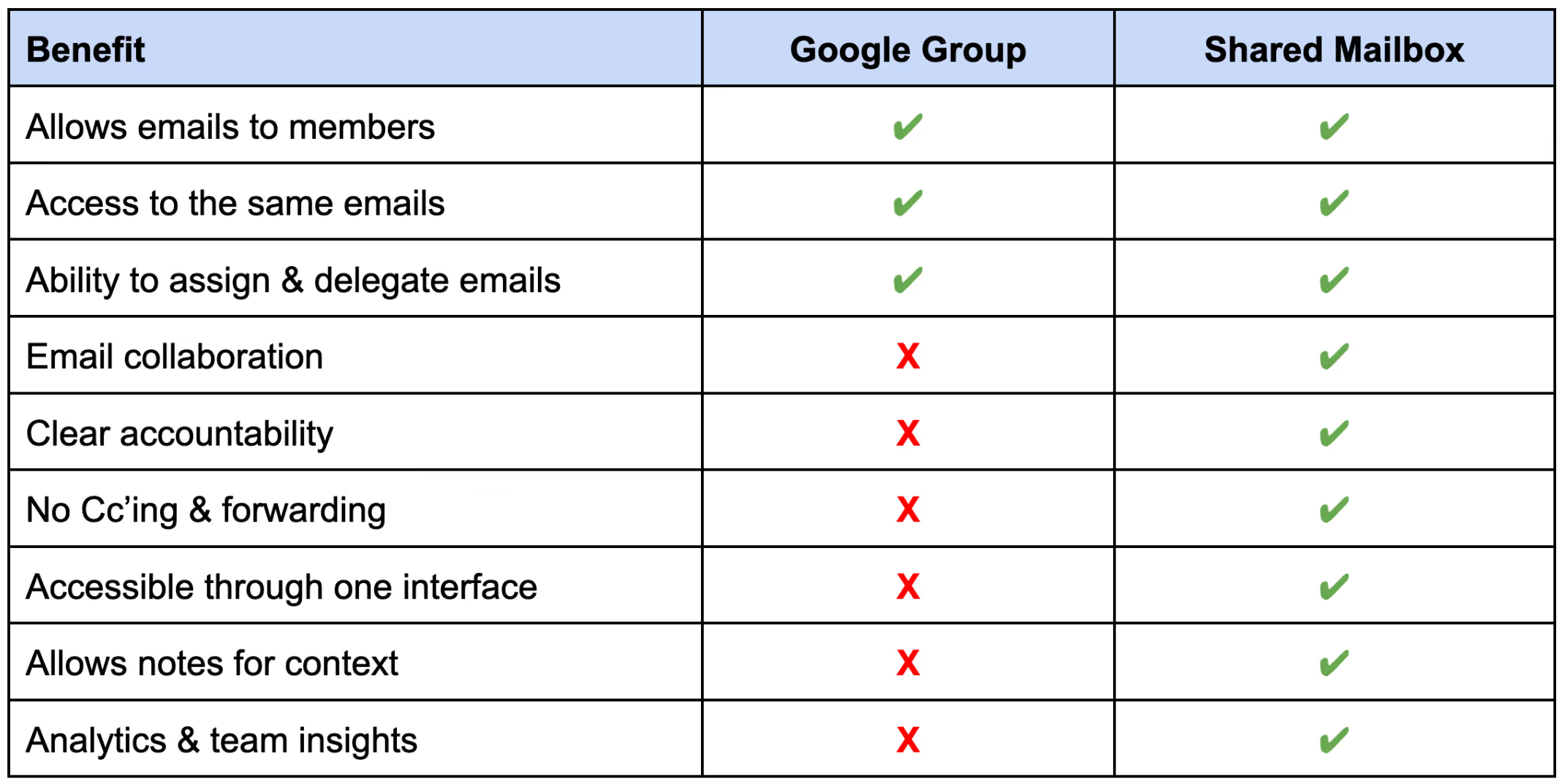
While both tools serve as a way to group users, the comparison reveals that they only share three foundational features, with shared inboxes offering significantly more advanced capabilities for workflow and collaboration.
- Allows emails to members: Both solutions cover the basics: they successfully ensure that emails sent to a central address are distributed to the relevant group members.
- Access to the same emails: Transparency is equal at the entry level. Both group email and shared mailboxes ensure that all members have access to the same pool of incoming communications.
- Ability to assign and delegate emails: Both tools allow for some level of assignment and delegation, ensuring tasks can be handed off to specific team members.
- Email collaboration: This is a major different. A shared mailbox is built for email collaboration (working together on a draft or issue), whereas group email lacks this capability entirely.
- Clear accountability: Group email struggles with ownership, earning a red "X" for accountability. A shared mailbox provides clear visibility into who is handling what, ensuring nothing slips through the cracks.
- No Cc’ing & forwarding: A shared mailbox eliminates the clutter of email chains. While group email still relies on Cc’ing & forwarding to keep people in the loop, a Shared Inbox centralizes communication without the noise.
- Accessible through one interface: Group email often requires switching contexts or interfaces to manage settings and messages. A shared mailbox consolidates everything, making it accessible through one interface for a smoother user experience
- Allows notes for context: Group email does not support internal discussion on threads. A shared mailbox allows notes for context, enabling teams to discuss emails privately (e.g., "I already called this client") without the customer seeing it.
- Analytics and team insights: Finally, group email offers no data on performance. A shared mailbox provides email analytics and team insights, such as response times and volume tracking, which are essential for improving team efficiency.
The best email solution for your team will address your company's specific needs.
How to choose the right tool for your collaborative inbox?
A shared mailbox offers a better solution for enhancing collaboration, task assignment, and delegating emails for clear accountability. However, if you simply need to communicate with all team members simultaneously, a group email may better suit your needs.
Remember that while group emails often come gratis, or at a lower cost, they sometimes lack features many teams view as essential. A shared mailbox may cost more, but your team will likely view the benefits and solutions as priceless.
Try Gmelius for free.
Examples of group email vs shared inbox
Of course, the most common example of group email is probably Google Groups. A Google Group is a separate app within Google Workspace that allows users to email a large group at once. If your team uses Microsoft for email, an Office 365 group offers similar functionality via Microsoft Teams instead.

On the other hand, Gmelius is a good example of a shared inbox solution. It creates a collaborative inbox for Google Workspace users where you can auto-label conversations, assign tasks, automate email management, and much more.

Gmelius: The Only Inbox Your Team Needs
As a collaboration and communication tool for Gmail, Gmelius offers the only truly shared mailbox solution for teams using Google Workspace.
To build a productive workflow, your team needs a collaborative solution that protects focus time. Recent data reveals that 68% of employees feel they don't have enough uninterrupted focus time during the workday due to the influx of chats and meetings. Group email and shared mailboxes are two popular ways to fix this problem.
While a group email can expedite communication, the ability to bring team members together with a shared mailbox promotes greater efficiency. Gmelius allows your team to create a shared inbox directly from Gmail instead of managing multiple inboxes or downloading additional apps.

Your Gmail inbox makes all Gmelius features immediately accessible. Teams can view multiple shared inboxes from one interface and manage emails together. Gmelius offers the following additional features to promote collaboration:
- Email notes allow teams to hold conversations to the side of an email, preventing additional email threads, cc'ing, and forwarding.
- Teams can assign emails for clear accountability to prevent duplicate replies, with a clear conversation history.
- No need to share passwords. Gmelius is accessible from each team member's personal Gmail account. Simply log in and view your company's shared mailboxes on the left side of the interface.
- Analyze and improve team collaboration with insightful analytics.
If your team already uses Google Groups, Gmelius can convert a group into a superpowered collaborative inbox for all users.
Download the Gmelius extension for your browser today to get started.
Group Email vs Shared Mailbox Frequently Asked Questions
1. What’s the difference between a group email and a shared mailbox?
A group email (like Google Groups) forwards messages to each member’s inbox. There’s no central place to manage replies, which can lead to confusion. A shared mailbox keeps emails in one inbox where your team can collaborate, assign tasks, and reply without stepping on each other.
2. Can Google Groups be used as a shared inbox?
Not effectively. Google Groups are made for broadcasting messages, not managing emails as a team. They lack features like assignment, notes, and tracking. If you need collaboration and accountability, a shared mailbox (like the one Gmelius provides) is a much better fit.
3. When should I use a group email vs. a shared mailbox?
Use group email for one-way communication like announcements or internal updates. For anything that requires teamwork (like customer support, lead management, or operations) a shared mailbox is better. It lets your team reply, assign, and automate, all in one place.
4. Do shared mailboxes need separate Gmail logins?
No. With Gmelius, each user accesses the shared inbox from their own Gmail account. No extra logins or password sharing. It’s secure, easy to manage, and built right into your existing Gmail workflow.
5. Can multiple teammates respond to the same email?
Yes, and without overlap. Shared inboxes show who’s handling what, let you assign conversations, and include collision alerts. That means no more duplicate replies or confusion, just smooth, clear teamwork.
6. What does Gmelius add to Gmail’s shared inbox experience?
Gmelius adds everything Google Groups lacks: assignments, internal notes, automation rules, Kanban boards, and performance analytics. All from inside Gmail. It turns a simple inbox into a full team workspace.
In Case You Skimmed
- Group Email (like Google Groups): This is mainly for sending messages to many people at once, like a mailing list. Everyone gets a copy of the email in their personal inbox. It's great for announcements or one-way updates but makes it confusing to manage who is replying to a customer.
- Shared Mailbox (like Gmelius): This is a single, shared space where your team can all work on emails together. It is best for tasks like customer support or handling sales leads because you can give emails to specific teammates, talk about a message privately, and make sure two people don't reply at the same time.
- Choosing the right tool: Use a group email for simple announcements. Choose a shared mailbox if your team needs to work together on responses, share the workload, and keep track of who is responsible for each customer conversation.
- Gmelius: This system gives you a shared mailbox directly inside Gmail, letting you use features like shared team inboxes, private notes on emails, the ability to assign emails for clear ownership, AI for writing and sorting emails, analytics, and Kanban boards.
Next Steps?
When you compare Google group emails to a shared team inbox, you may not immediately see the benefits. After all, both allow multiple users to see the same emails without being in CC or BCC. However, when you examine the component parts, the differences become clear.
A group email is like a distribution list; anything sent to that email will be seen by everyone. In contrast, shared inboxes give you much more control and enable smarter collaboration.
Using a shared mailbox, you can assign an email to a group member and even set up automation rules to assign a specific type of email (e.g., anything with an order ID) to designated email accounts (e.g., support@company.com).
Ultimately, a shared mailbox is a simple way to organize all your email-related processes, whereas group emails merely act as distribution lists. If you're prioritizing productivity, the answer is a no-brainer.
Gmelius is the collaborative inbox solution that puts the genius into Gmail. Find out how it can help your team.


.avif)
.avif)
%20(2).avif)
.avif)
.avif)
.avif)