.avif)



Smooth communication across departments starts with how emails are shared. Whether it’s HR updates, IT announcements, or customer support threads, teams need a simple way to share, organize, and respond to emails collectively.
If your team uses Gmail within Google Workspace, you’ve likely seen Google Groups, but maybe never fully explored its potential. That’s where Google Groups comes in.
In this guide, we’ll break down exactly what Google Groups is, the types of Groups you can create, how it works, and what its pros and cons look like in 2026, along with a few smarter alternatives worth considering.
What Is a Google Group?
Google Groups definition
A Google Group is a shared communication space that lets people collaborate using a single group email address, for example, support@company.com or marketing@brand.com.
When someone sends an email to that address, every member of the group receives it automatically. This structure makes it easy to distribute information, coordinate tasks, and maintain visibility across teams without creating dozens of one-to-one threads.
Each group can function as:
- A mailing list for announcements
- A discussion forum for team dialogue
- A collaborative inbox for shared messages
- Or a Q&A-style board for public or internal communities
Essentially, Google Groups transforms email into a shared workspace, although with certain limitations compared to modern team inbox tools. In a nutshell, that's how Google Groups works. Next, we'll explain this process in more detail.
How Google Groups Work
At its core, Google Groups connects people through one central inbox
Here’s how the structure works:
1. You create a group email address, such as sales@company.com.
2. You add members to the Google Group: teammates, departments, or external collaborators.
3. Permissions are assigned, defining who can view, post, or manage messages.
4. Emails sent to the group address are either distributed to all members or stored in a shared online forum (depending on the type of group).
Roles and permissions
How members can interact with the Group
Every Google Group has three key roles:
- Owner: Has full administrative control: can edit settings, add or remove members, and delete the group.
- Manager: Can moderate discussions, approve posts, and manage membership.
- Member: Can send and receive messages, depending on permissions.
Admins also define visibility settings:
- Public: Anyone can view or join the group.
- Restricted: Users can find the group but must request access.
- Private: Only invited members can see or participate.
These options make Google Groups flexible enough to use for internal projects, customer-facing communities, or company-wide announcements.
Types of Google Groups
Google offers several types of Google Groups, each serving a different purpose within an organization or community
Let’s look at them in detail:
1. Email list
The Email List type is the simplest form of Google Group. It allows one person to send a message to multiple recipients via a single group address.
Example: The HR team can create announcements@company.com to share policy updates or events with all employees.
This is ideal for one-way communication where members don’t need to reply or collaborate, much like a company newsletter.
2. Web forum
The Web Forum type works like a message board. Members can post messages, reply, and browse threads through groups.google.com.
Example: An internal tech community can use a web forum for troubleshooting discussions or feature suggestions.
It’s similar to an online forum or Slack channel but operates entirely via email and web.
3. Q&A forum
This version of Google Groups is designed for question-and-answer interactions. It’s especially useful for organizations that want to manage recurring questions in a searchable format.
Example: A university might use a Q&A Group for students to post academic or administrative questions.
Admins can mark replies as “Best Answers,” helping future readers find solutions faster.
4. Collaborative inbox
The Collaborative inbox is the most advanced and business-relevant type of Google Group. It lets members share responsibility for incoming messages, assign tasks, and mark emails as “Complete” or “Pending.”
Example: A support team can manage customer queries sent to help@company.com by assigning emails to specific team members.
While functional, the collaborative inbox lacks automation, analytics, and real-time visibility features found in modern shared inbox tools like Gmelius.
Benefits of Using Google Groups
Google Groups remains a popular option for many businesses because it’s free, built into Google Workspace, and simple to set up
Let’s break down its key advantages:
✅ Centralized communication
Instead of forwarding emails or CC’ing multiple people, everyone communicates via one group address. This keeps messages centralized and easy to track, and can even work as a Google Group chat.
✅ Easy member management
Admins can add or remove users from a group at any time, ensuring that new hires automatically gain access to relevant communication while departing employees lose access by using the right Google Groups subscription options.
✅ Searchable archives
All messages sent to a Google Group are archived automatically, making it easy to search past conversations and maintain a record of decisions or updates.
✅ Integrated with Google Workspace
Since it’s part of Google’s ecosystem, Groups integrates seamlessly with Gmail, Drive, and Calendar, making it familiar for existing Workspace users. It's also available for free, as we discuss in our detailed review of Google Groups.
✅ Reusable templates for consistency
Google Groups also lets you save and reuse standard email templates, ensuring consistent communication across teams, especially helpful for HR updates, customer announcements, or recurring internal requests.
%205.01.12%E2%80%AFp.%C2%A0m..avif)
Limitations of Google Groups
As teams scale or workflows become more complex, Google Groups’ limitations start to show
Here are the areas where it falls short:
❌ No automation
There’s no built-in way to automatically tag, assign, or prioritize incoming messages. Every action, from sorting emails to acknowledging receipt, has to be done manually. In comparison, more powerful Gmail add-ons like Gmelius can sort emails automatically using AI.
❌ Limited collaboration
While the collaborative inbox helps, it’s not built for modern teamwork. You can’t chat within an email thread, mention teammates, or attach notes the way you can in dedicated email collaboration tools.
❌ No analytics or reporting
Google Groups doesn’t provide metrics on response times, message volume, or ownership, key email analytics for HR, support, or operations teams.
❌ Permission complexity
Setting up permissions can get tricky, especially across multiple teams. It’s easy to accidentally make a group public or limit access too tightly. Risk and complexity are among the key reasons why many teams ultimately end up deleting Google Groups.
❌ Not ideal for real-time teams
Unlike Slack, Gmelius, or Front, Google Groups is built around asynchronous communication. It works best for structured – and, usually, one-way – updates, not fast-paced collaboration.
Common Use Cases for Google Groups
Despite its age, Google Groups continues to serve well in several scenarios:
- HR announcements: Share company-wide updates or policy changes.
- Internal projects: Centralize team discussions in one group inbox.
- Customer support (small teams): Manage incoming requests via collaborative inbox.
- Community management: Host Q&A forums or online user groups.
- Departmental communication: Maintain transparency across departments like Sales or IT.
If your needs are simple and volume is low, Google Groups can handle the basics effectively. But don't except to scale up anytime soon.
5 Steps for Creating a Google Group
Setting up a Google Group takes just a few steps:
- Go to groups.google.com.
- Click Create Group.
- Enter your Group name, email address, and description.
- Choose your Group type (Email List, Web Forum, Q&A Forum, or Collaborative Inbox).
- Set permissions for who can view, post, and join.
- Add members and click Create.
Once the group is active, you can start using the group email address for communication.
Google Groups vs. Modern Alternatives
While Google Groups provides the basics, most modern teams need deeper functionality, such as automation, shared ownership, and real-time collaboration.
Here’s how it stacks up against dedicated shared inbox platforms
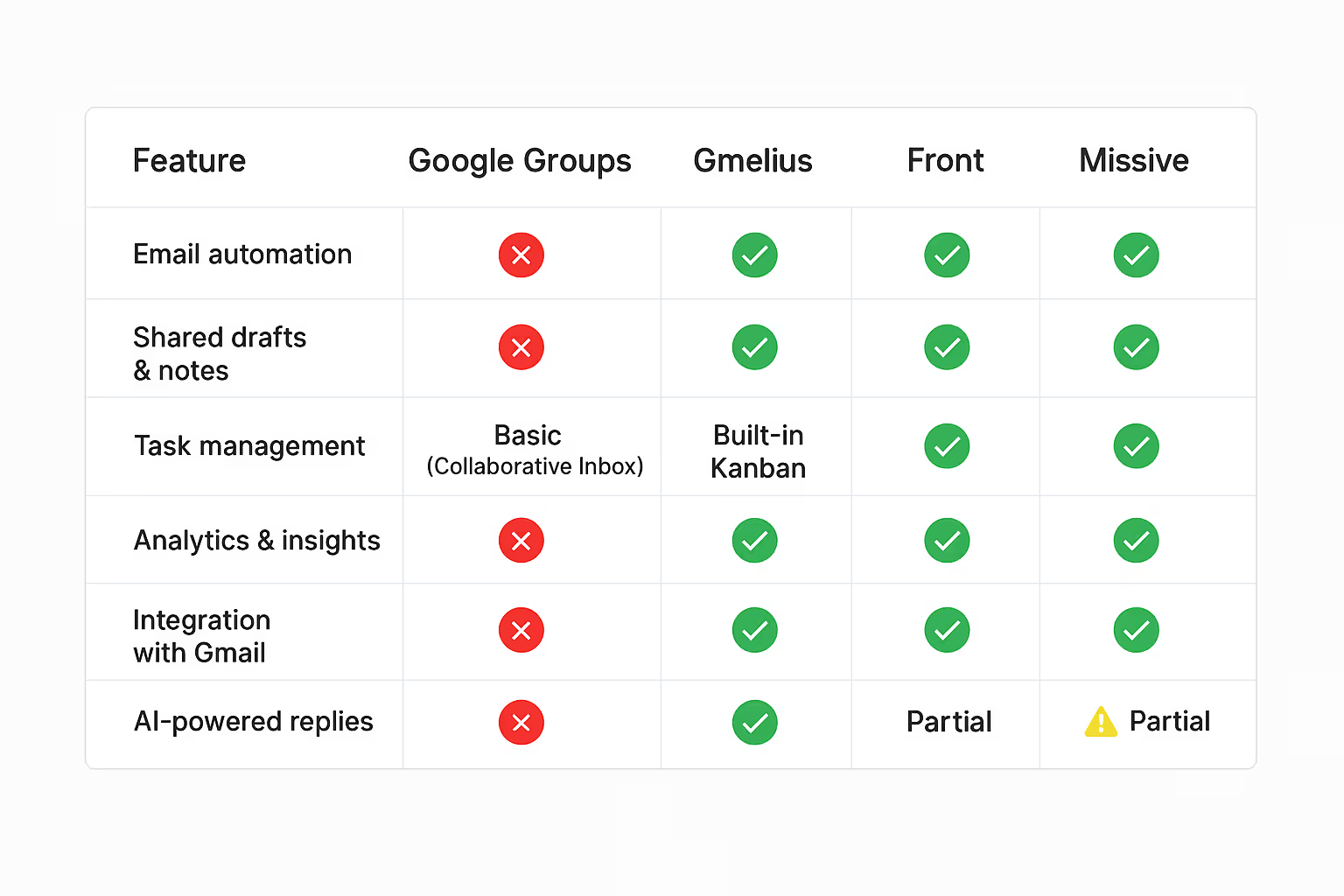
If your HR, operations, or support teams rely heavily on Gmail, Gmelius is the most natural upgrade. It layers automation, AI-generated replies, and collaborative tools directly into Gmail, so you can keep your existing workflow but work far more efficiently.
Why Businesses Are Moving Beyond Google Groups
Teams today face challenges Google Groups wasn’t built for: managing high email volumes, coordinating remote teams, and responding faster to customers or employees.
Modern shared inbox tools like Gmelius fill those gaps by adding:
- AI-assisted replies to maintain consistency and tone
- Automated routing of emails to the right teammate
- Shared visibility without exposing private inboxes
- Project tracking directly from Gmail
Beyond streamlining workflows, these tools leverage AI to learn from team communication patterns, suggesting smarter replies, prioritizing urgent messages, and uncovering bottlenecks before they impact response times.
Instead of replacing email, they make it work smarter, turning messages into actionable, AI-powered workflows that scale with your business.
Final Thoughts
In 2026, Google Groups remain a solid starting point for small teams that want to centralize communication without extra cost or setup. It’s simple, reliable, and deeply integrated with Google Workspace.
But for growing organizations, HR departments, or customer-facing teams, it often isn’t enough. As communication scales, you’ll need more structure, automation, and analytics than Google Groups can offer.
That’s where tools like Gmelius come in: blending shared inboxes, automation, and AI directly into Gmail. So your team can stay transparent, organized, and connected without leaving the inbox you already know.
Start your 7-day Gmelius trial, no credit card needed.
Answering Your Frequently Asked Questions (FAQs) About Google Groups
Q1. What is a Google Group?
Ans. A Google Group is a tool that allows you to communicate with a group of people using a single email address. It can be used as an email list, a web forum, or a shared inbox for support teams.
Q2. How do I join a Google Group?
Ans. You can join by visiting groups.google.com, searching for the group name, and clicking "Join group." Alternatively, an owner might send you an email invitation.
Q3. Do I need a Gmail account to join?
Ans. No. While a Google Account provides the best experience (access to the web interface), you can join and participate in many groups using any email address via email-only mode.
Q4. How do I unsubscribe from a group?
Ans. Open the group in the web interface and click My Settings > Leave Group, or send an email to [group-name]+unsubscribe@googlegroups.com.
Q5. Where can I see the archive of old Google Groups messages?
Ans. If the group owner has enabled it, you can view the entire history of conversations by visiting the group's homepage at groups.google.com.
Q6. Can I change how often I receive emails?
Ans. Yes. You can choose between "Each email," "Digest" (up to 25 messages per email), "Abridged" (one summary daily), or "No email" (web-view only).
Q7. How do I start a new Google Groups conversation?
Ans. Click the + New Conversation button on the group's web page, or simply send an email to the group’s unique email address.
Q8. Why didn't my Google Groups post appear immediately?
Ans. Some groups are "Moderated," meaning an owner or manager must approve your post before it becomes visible to the members.
Q9. How do I add an attachment to a Google Groups post?
Ans. When creating a post on the web interface, click the paperclip icon. If posting via email, simply attach the file to your email as usual.
Q10. Can I edit or delete my posts in a Google Group?
Ans. You can delete your own posts if the group settings allow it. However, once an email is sent to members' inboxes, you cannot "recall" it from their personal mail.
Q11. What is the difference between a "Member," "Manager," and "Owner" in Google Groups?
Ans. The difference between a "Member," "Manager," and "Owner" in Google Groups comes down to role priveliges:
- Members: Can post and view.
- Managers: Can approve posts and add/remove members.
- Owners: Have full control, including deleting the group or changing core settings.
Q12. How do I invite or add people to my Google Group?
Ans. Go to Group Settings > Members > Invite/Add members. "Inviting" asks them to join; "Direct Adding" adds them immediately (best for internal teams).
Q13. Can I hide the Google Groups from public search?
Ans. Yes. In Group Settings, you can set the "Visibility" to "Group members" so only those invited can see it exists.
Q14. How do I prevent spam in my group?
Ans. You can enable "Moderation" for new members, set the group to "Private," or use Google's built-in spam filtering found in the settings menu.
Q15. What is the member limit for a Google Group?
Ans. For free Google Groups accounts, you can add up to 100 people at a time, but there is no hard limit on total members. For Google Workspace (enterprise), the limits are significantly higher.
Q16. Can I use a Google Group as a "Collaborative Inbox"?
Ans. Yes, but with caveats. This allows members to assign topics to themselves, mark threads as "resolved," and track the status of incoming queries. However, there are limitations, as we explain in our guide to Google Groups ticketing systems.
Q17. How do I change the group's name or email address?
Ans. You can change the Display Name anytime in Group Settings. However, the email address (the @googlegroups.com part) usually cannot be changed once created.
Q18. Who can see my email address when I post in Google Groups?
Ans. This depends on the group's privacy settings. Usually, other members can see your email, but you can choose to use a "Display Name" for the web forum view.
Q19. How do I delete a Google Group?
Ans. Only an Owner can delete a group. Go to Group Settings > Advanced and select Delete Group. Warning: This action is permanent.
Q20. Why am I getting a "Message Rejected" error in Google Groups?
Ans. This usually happens if you aren't a member of the group, if the group is restricted to certain senders, or if your message triggered a spam filter.


.avif)
.avif)
.avif)
.avif)
%20(2).avif)