



Anthropic launched Claude Cowork (one of its AI agents for business and personal use) in January 2026, built on the same foundations as Claude Code, its coding agent. Yet, in July, when the company published usage data from 1.2 million Cowork sessions across more than 600,000 organizations, business operations work topped the list at 33.4%, followed by content creation at 16.4%. Software development and coding accounted for just 8.7%.
Most people, then, hand Cowork the administrative work rather than code.
This guide covers the setup, the three permission modes, prompts you can copy for common business tasks, and what Cowork cannot do yet. It's part of our Using AI for Business series.
What is Claude Cowork?
Claude Cowork is an AI-enabled bot, called an agent, that connects with multiple applications on your device (i.e., locally) to run tasks autonomously, such as search for new → write update → post on social media, based on a schedule or triggers.
In other words, Cowork is Claude Code without the terminal and helps with workflow automation without having any programming.
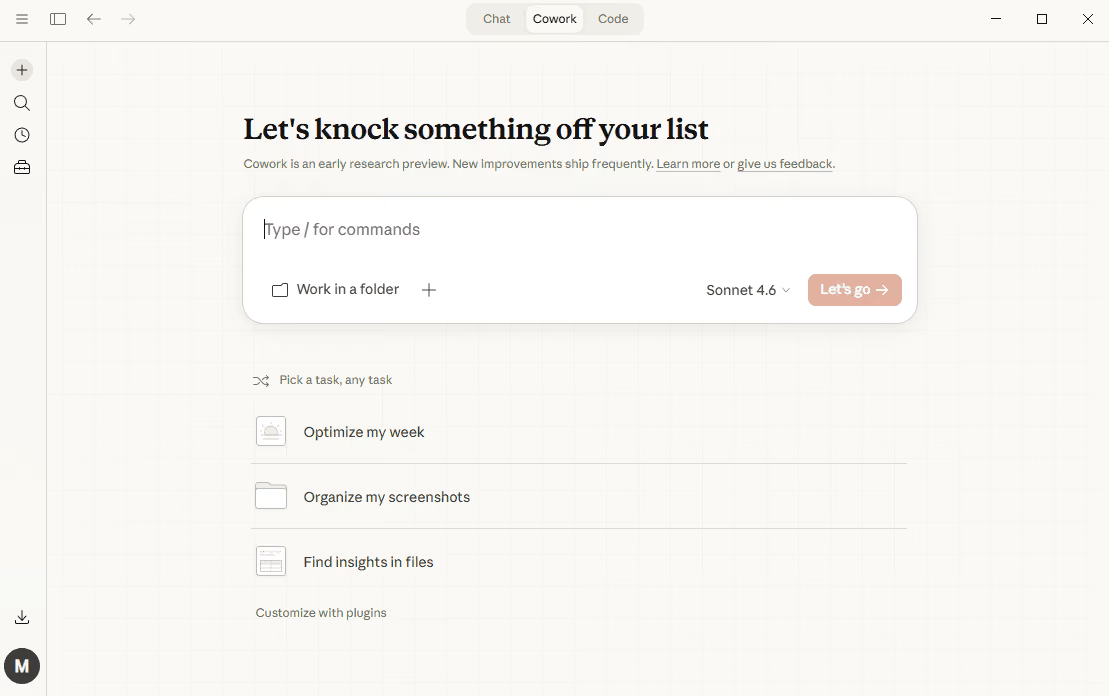
In a standard chat, Claude replies to your message and cannot reach your computer. In Cowork, you connect a folder and Claude can read and edit the files inside it. Claude will also run code in a sandbox, break a job into subtasks, and keep working for far longer than a chat session lasts.
Sessions now run in the cloud, which Anthropic still labels a beta. Because the work happens on Anthropic's servers, a task will continue after you close your laptop, and you can reopen the same session on your phone. For anything on your own machine, such as a local file or your browser, Claude connects via the desktop app.
Anthropic released Cowork first as a macOS research preview and has widened access since. Our primer on what AI agents are covers the wider category.
What Do You Need to Use Claude Cowork?
First, you'll need a paid Claude plan. The Cowork AI agent for business is included with Pro, Max, Team, and Enterprise, and Anthropic doesn't offer it on the free tier. Our breakdown of Claude's free and paid plans has the tier details.
You'll also want the desktop app for macOS or Windows. Cowork runs on web and mobile, but Claude needs to access local files, your browser, and your screen through the app, so keep it open for those. Anthropic rolled web and mobile access out plan-by-plan, starting with Max, so check whether yours has arrived.
Sessions need an internet connection throughout.
How to Start a Claude Cowork Session
Chat and Cowork share one home, so you'll begin both from the same message box.
- Open Claude on the web, in the desktop app, or on your phone.
- Select Cowork in the message box.
- Describe the task.
- Read the plan Claude proposes, then approve it.
Write step three carefully, as Claude will act on the brief you give it, and a loose one will usually lead to a meandering session. Try something closer to this:
This brief (above) names the folder, the fields to be pulled by Claude, the file name for the output, and one action Claude has to ask about first. Our guide on how to ask AI better questions goes further into briefing. In chat, a misunderstanding will probably costs just another reply, but in AI agents for business like Cowork, it can cost you forty files.
How Cowork Handles a Task
Claude will draft a plan, divide complex work into subtasks, run code and shell commands in an isolated environment on Anthropic's servers, and run parallel workstreams where they help. Finished files are outputted in your session for you to preview and download.
You'll see progress at each step and can interrupt to redirect. Claude narrates its reasoning as it goes, so you will usually catch a session heading the wrong way early. You can even close the laptop on a long job and Claude will send any decision it can't make on its own to your phone.
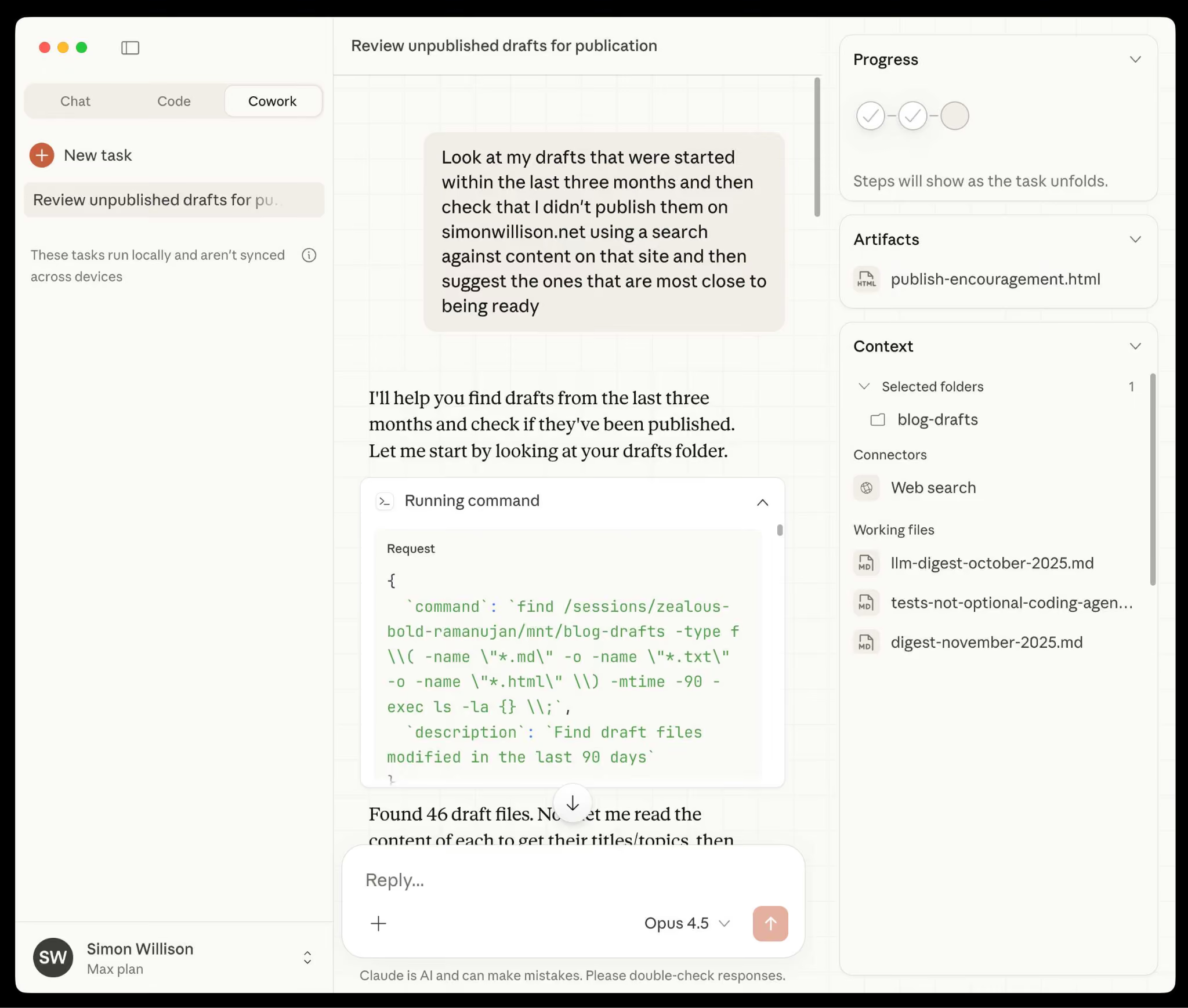
Set Global and Folder Instructions for Claude Cowork
Global instructions apply to every session on the AI agent for business. Open Settings, then Cowork, then Global instructions.
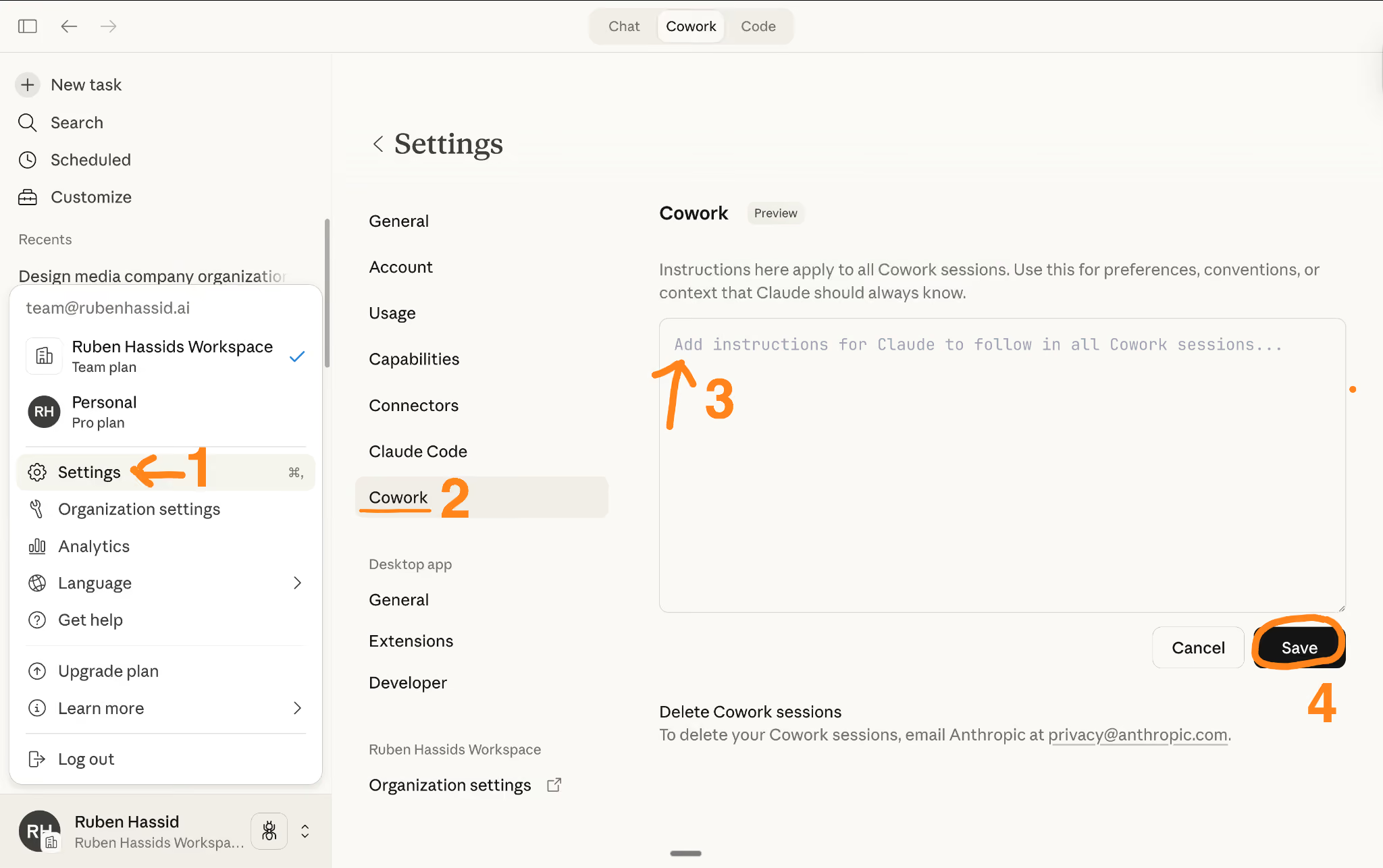
Here, you can enter a prompt like this, which then acts as a standing instruction.
Folder instructions do the same for a single local folder on desktop. Claude will update them itself as it picks up your preferences during a session.
Does Claude Cowork Need Integrations to Work?
Claude Cowork does not require integrations for local work, but you will need to set them up if you want Claude to reach external services like Gmail, Google Drive, or GitHub.
How integrations work in Claude Cowork
- Local files: Point Cowork at a folder and it will read the PDFs, spreadsheets, documents, and images inside, with no connector attached.
- File creation: This is built into the system, and Claude will write Excel workbooks with live formulas, PowerPoint decks, and Word documents, so you won't need Microsoft Office on the machine.
- External services: If you want Claude to read email, pull files from cloud storage, or open a repository, you’ll need to turn on a connector from the customization menu.
- Existing connectors: Cowork will also use whatever you have already set up in Claude, including Notion, Asana, and Linear.
- Browser access: Switch on Claude in Chrome to have Cowork perform browser-based actions. For example, a Cowork session can sign into a portal and export a report.
Setting up a connector
Open Settings, choose the service, sign in with that account, and approve the permissions requested by Claude.
For local work, Claude Cowork will prompt you for folder access the first time a task needs it. Ideally, you should grant one folder rather than your whole home directory, and widen access as tasks require it. Keep Gmail on draft-only permissions until you have read enough of Claude's output to trust it. This can prevent mishaps later on.
Prompts for Claude Cowork Tasks – Templates to Copy-Paste
Here are a few sample prompts to help you start using Claude Cowork, and you can adapt the paths and file names to your own setup.
Scattered inputs into one report.
A spreadsheet with working formulas. Cowork will produce Excel files with live formulas and multiple tabs rather than a CSV you then have to rebuild.
Transcripts into decisions.
Research against your own numbers.
A browser task. Claude in Chrome lets Claude open a site, complete forms, and click through an interface.
Add a line like that last one whenever a task involves your browser. You can even tell Claude what to leave alone.
Scheduling Recurring Work on Claude Cowork
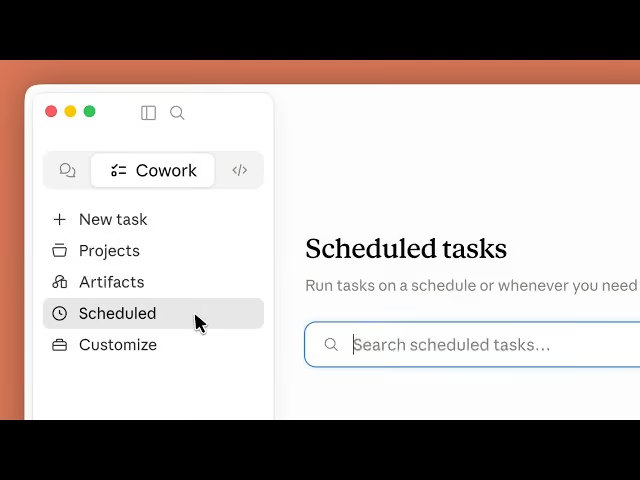
Type /schedule inside any Cowork task, or open Scheduled in the left sidebar to create and manage them. Scheduled tasks run in the cloud, so your computer can be shut down. Here's an example:
How Many Tokens Does Claude Cowork Use?
Cowork will consume your allowance faster than chat, because multi-step tasks with file access and code execution take more compute. Also, Auto mode adds more, on top of this.
That’s why it’s advisable to batch related work into one session instead of starting five, and keep standard chat for anything that doesn't need your files. Check Settings, then Usage, before you begin something long on your AI agent for business.
Claude Cowork Security Isolation
Cowork sessions run in an isolated, temporary environment on Anthropic's servers. Anthropic creates it for that one session, keeps it off your home and company network, and destroys it when the session ends.
Isolation protects your computer, but it doesn't restrict what Claude can do with the access you've already granted. Connect a folder of client contracts and the sandbox won't protect the contracts, which is why you have to be aware of:
- Prompt injection: A hidden instruction in a document or a webpage can try to hijack a session. Auto mode screens for it, and Anthropic advises against connecting folders that hold sensitive information.
- Web search bypasses egress rules: Egress permissions don't cover web fetch, web search, or MCP connectors, including Claude in Chrome. Team and Enterprise owners can turn web search off for Cowork in organization settings.
- Admin visibility: Team and Enterprise plans can monitor Cowork activity through OpenTelemetry, and the Compliance API captures web and mobile sessions.
- Deletion: If you delete a task from the ⋮ menu, it leaves your history immediately. Anthropic clears it from backend storage within 30 days. Our guide on how to delete your ChatGPT and Claude history covers both the tools.
Claude Cowork Caps
Cowork needs a folder of inputs and a defined output, so if you provide both, then it will deliver, on a schedule if you set one.
The conversation around the work is separate, which means, you can't hand a session to a colleague mid-thread. Someone still has to send the report, and the supplier chasing an update is in your inbox rather than the folder.
- Chat memory doesn't reach Cowork. Inside Cowork, memory works in projects only.
- You can't share a session with a colleague. Team and Enterprise plans can share live artifacts within the organization.
- Live artifacts and plugins that include local MCP servers work on desktop only.
- Usage costs make Cowork a poor fit for quick questions.
Gmelius works on that side. Meli, its AI, drafts from the live email thread instead of a blank prompt, and Gmelius runs the shared inbox around it, including triage, assignment, and visibility when several people answer from one address. Cowork produces the deliverable. Gmelius moves the conversation. Our guide on using AI assistants for work covers more of that ground.
Want AI that handles the email side of your operations? Start your free Gmelius trial and let Meli work directly in your team's inbox.
Frequently Asked Questions
Do I need a paid plan to use Claude Cowork?
Yes. Anthropic offers Cowork on Pro, Max, Team, and Enterprise plans, with no access on the free tier. Web and mobile rolled out by plan, so a paid subscription won't guarantee every surface yet.
How is Cowork different from Claude Code?
They share an architecture. Anthropic built Claude Code for software engineering and runs it in the terminal and IDEs as well as the desktop app. Cowork drops the terminal and targets knowledge work, which showed up in the company's usage data: coding came to under 9% of sessions.
Can I use Cowork without the desktop app?
Partly. Cowork runs on web and mobile, and cloud sessions will work there. Anything that reaches your computer, meaning local files, browser control, or computer use, needs the desktop app open on that machine.
Does Cowork use more of my allowance than chat?
Considerably more, and auto mode raises it again. Keep Cowork for multi-step work that needs your files, and leave quick drafting to standard chat.
Is it safe to give Cowork access to work files?
That depends on the folder. Session isolation protects your computer and your network, but it won't restrict what Claude does with the access you've granted, so scope folders tightly and keep confidential material out. Run a first session on manual approvals in a folder where a mistake will cost you nothing.



.avif)

.avif)
.avif)