


Most users don't want to re-explain their formatting rules or their brand voice every single time they open a new chat. Claude Skills exist to fix exactly that: it lets ordinary users teach an AI assistant new habits without writing a line of code.
Anthropic built the feature so any professional can package a repeatable task into instructions that Claude follows automatically, whether that means drafting emails in a particular tone or formatting reports the same way every time.
No engineering background is required to build a working skill from scratch, regardless of how technical the process might sound at first.
What Is a Claude Skill?
A Claude Skill is a folder of instructions that tells Claude exactly how to handle one specific, repeatable task. Anthropic describes it as a set of guidelines Claude reads before starting work, similar to handing a new employee a written procedure instead of repeating verbal instructions each time.
The instructions are in the form of plain Markdown text, so nothing resembling programming syntax or code will appear anywhere in the file. A skill could be very simple and cover a short paragraph of guidance, or it can be expanded into a multi-file package once someone adds supporting material, like templates or reference documents.
The premise for both versions is simple: capture a process once, then let Claude repeat it reliably across future conversations.
How Does a Claude Skill Work?
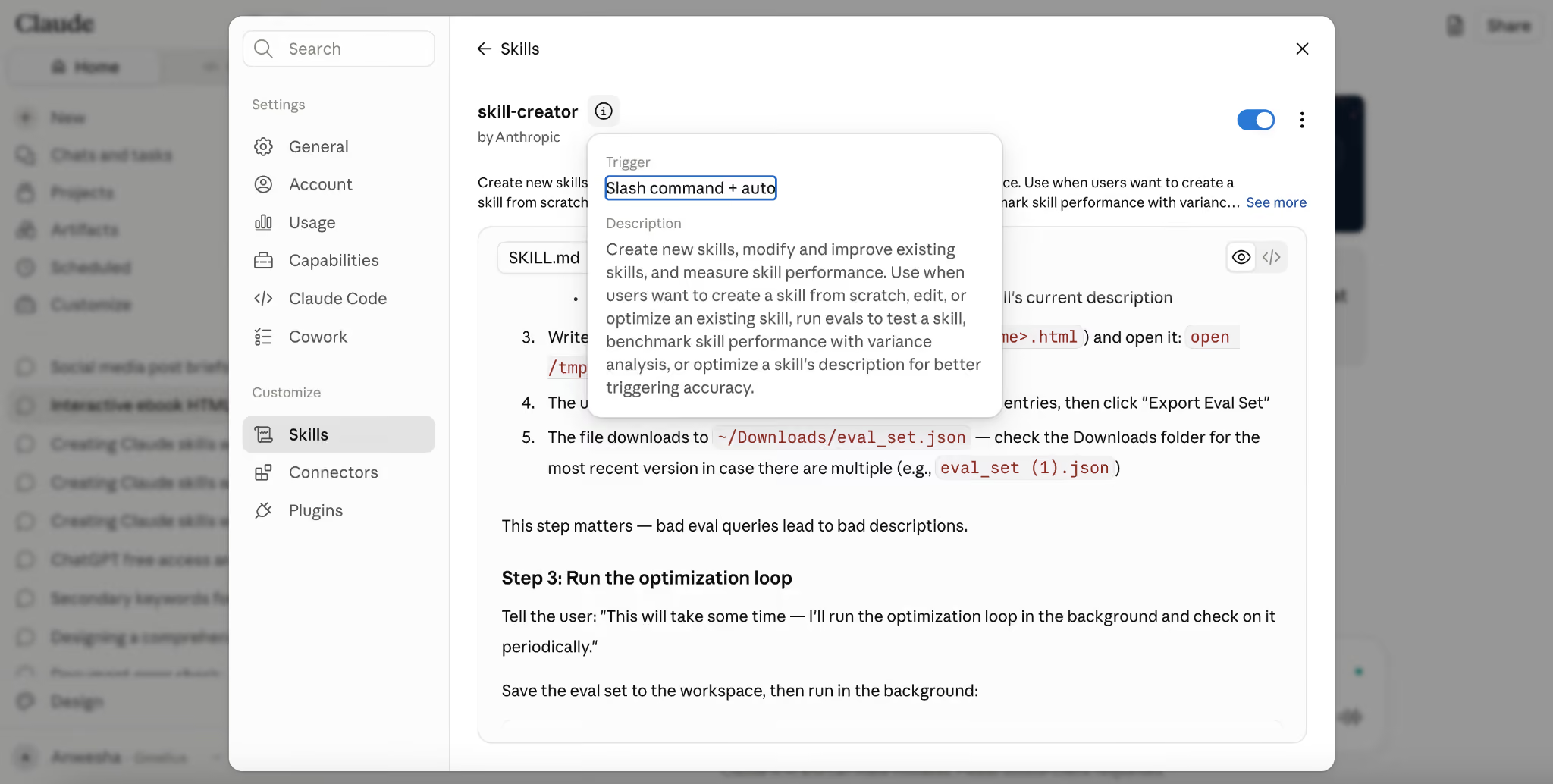
Skills operate through a process Anthropic calls progressive disclosure, meaning Claude only loads what a given task actually needs. Every skill carries two required fields: a name and a description, and Claude scans those short summaries before deciding whether a task calls for that particular skill.
If the description matches the request closely enough, Claude opens the full instructions and applies them to the current task. Otherwise, that skill stays dormant and adds no extra weight to the conversation.
This design choice allows Claude to operate efficiently, since loading every available skill on every message would clutter its working memory and slow responses considerably. Bear in mind that Anthropic skills are built directly by Anthropic for tasks like formatting Word documents or assembling spreadsheets. These load automatically and require no setup at all.
Custom skills follow that same underlying mechanism, but the difference is that they come from an individual or an organization rather than from Anthropic itself.
Once code execution and file creation are switched on inside account settings, Skills become available across relevant conversations, and Claude decides case by case which instructions actually apply.
Step-by-Step Instructions to Create Your Own Claude Skill
There are two ways to build a skill without any coding background: writing instructions directly inside the Claude interface, or recording a screen demonstration and letting Claude turn it into a skill automatically. Let’s discuss both:
Step 1: Turn On Code Execution and File Creation
Skills depend on a capability called code execution and file creation, which must be active before any skill can run inside a conversation. Open Settings, then Capabilities, and toggle that option on if it’s currently set to “off”.
This same toggle also unlocks general file handling, so turning it on will unlock extra benefits beyond skills alone. Without this step, the skills menu will still appear, but nothing you build inside it will actually function during a real conversation.
Step 2: Open the Skills Menu Inside Customize
Navigate to Customize, then select Skills from the list of personalization options available there. This screen lists every skill currently enabled, alongside a directory of skills built by Anthropic and outside partners like Notion or Atlassian.
A quick look through that directory first can help someone new to skills understand the format before attempting to build one. Click the plus button in the corner to begin building something new instead of browsing existing options.
Step 3: Choose Create Skill
The "Create skill" option opens an editor that sits beside the conversation, much like the artifact panel used for documents and code. This editor accepts plain English descriptions of what the finished skill should accomplish, removing any need to understand file structures or metadata formats in advance.
Nothing about this screen resembles a code editor, since every field on it expects ordinary sentences rather than syntax of any kind.
Step 4: Describe the Task in Plain Language
Type a description of the repeatable task directly into the composer, covering what the skill should do and roughly when Claude should reach for it. For example:
"Build a skill called Client Follow-Up Emails that drafts a short, friendly reply whenever a client has gone quiet for more than a week, closing every message with a specific next step."
Here is another example we tried:
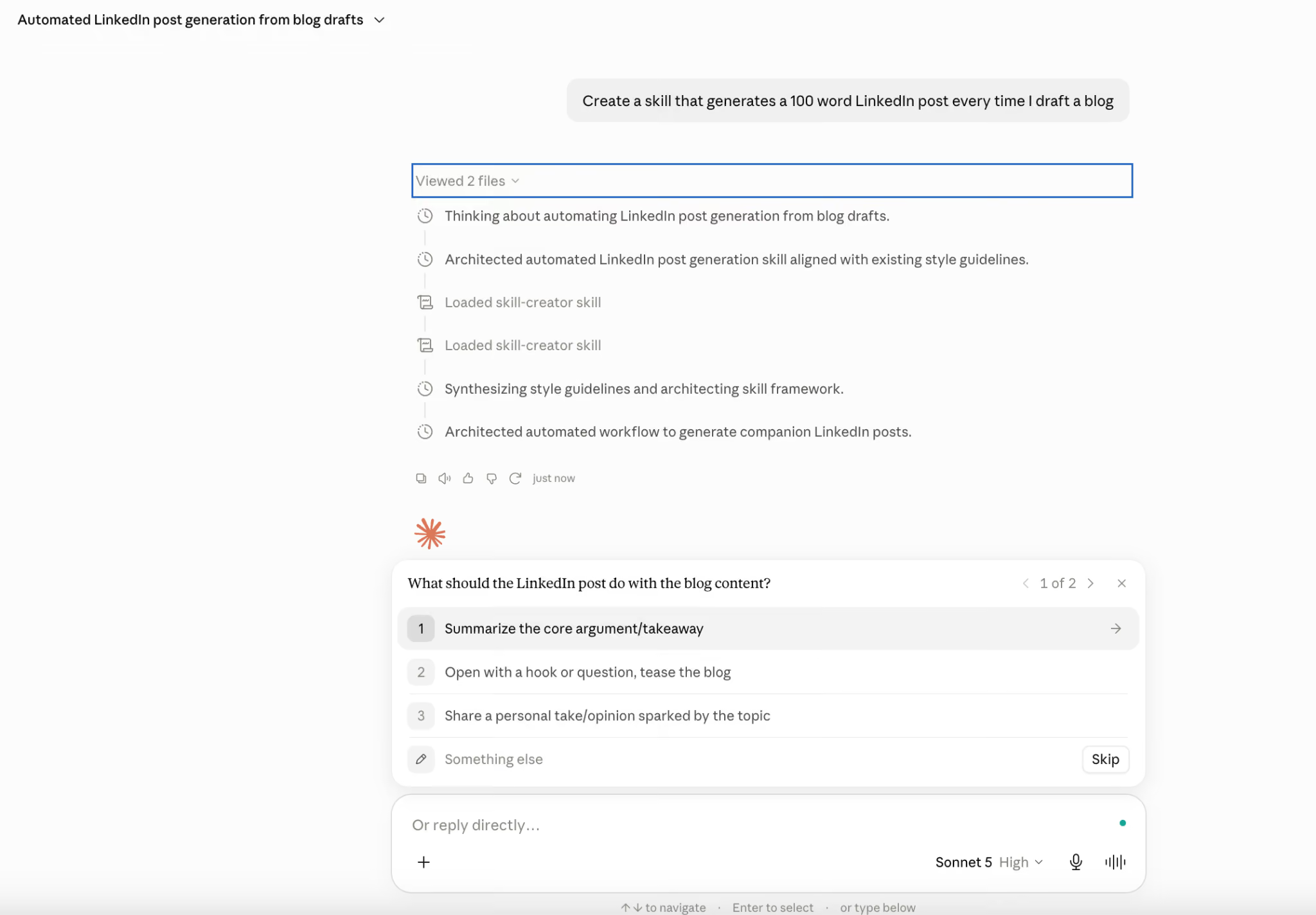
Claude will draft the skill.md file from that description, filling in a name field and a description field automatically. Type in a second prompt to refine the result further, such as asking Claude to shorten the tone or remove a section that feels unnecessary. Repeat until satisfied.
Step 5: Review and Refine the Draft
Read through what Claude produced, checking that the tone and structure match the intended use of the finished skill, and adjusting the level of detail wherever it feels off.
You can highlight a section of the draft and click "Edit with Claude" to request a targeted rewrite, like correcting a sentence that reads too formal or too vague without starting over completely. Multiple edit requests can be sent together across a longer skill, and Claude applies every change in a single pass rather than one edit at a time.
Step 6: Add a Clear Description Field
The description field is important, since Claude reads it before deciding whether a task calls for that skill at all. You can have Claude write a good Skill description for you, like: "Write a description under two hundred characters that names the exact scenario where this skill should trigger."
If you’re using Claude to create a skill, then the LLM will likely generate a detailed description without any intervention from you whatsoever. Here’s an example, where Claude generated a detailed description:
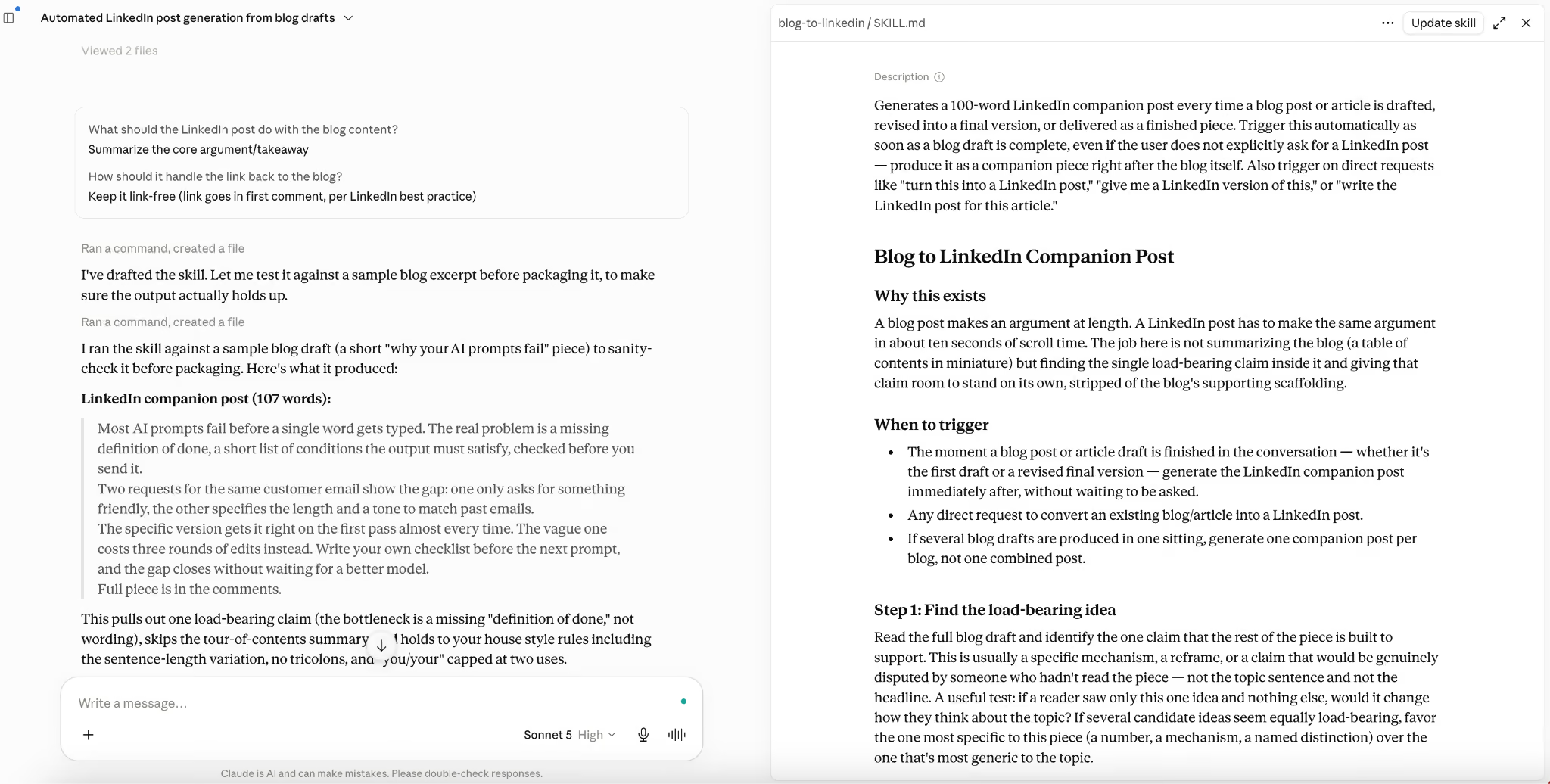
Vague descriptions may cause Claude to skip a skill it should have used, or worse, trigger it when the request calls for something else entirely. That’s why a description naming a concrete scenario, rather than a general theme, tends to work far more reliably in practice.
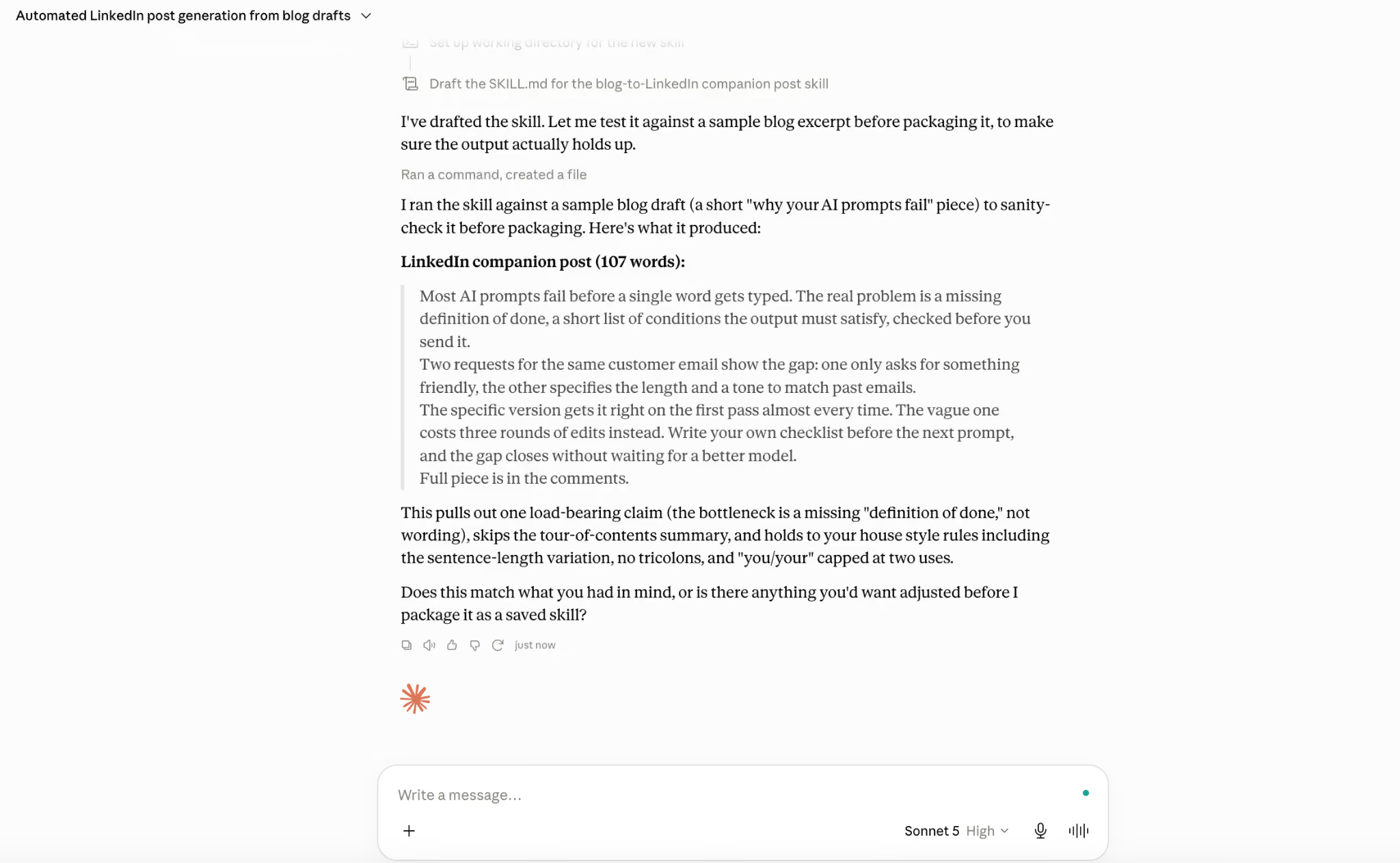
Step 7: Test the Skill with Real Prompts
Before relying on a new skill for actual work, send a handful of prompts that should realistically trigger it and watch how Claude responds. A solid testing prompt for this particular step might read something like the following:
"Draft a follow-up email to a client who has not replied in two weeks about the pricing proposal."
You can also use the “Try in chat” option from settings:
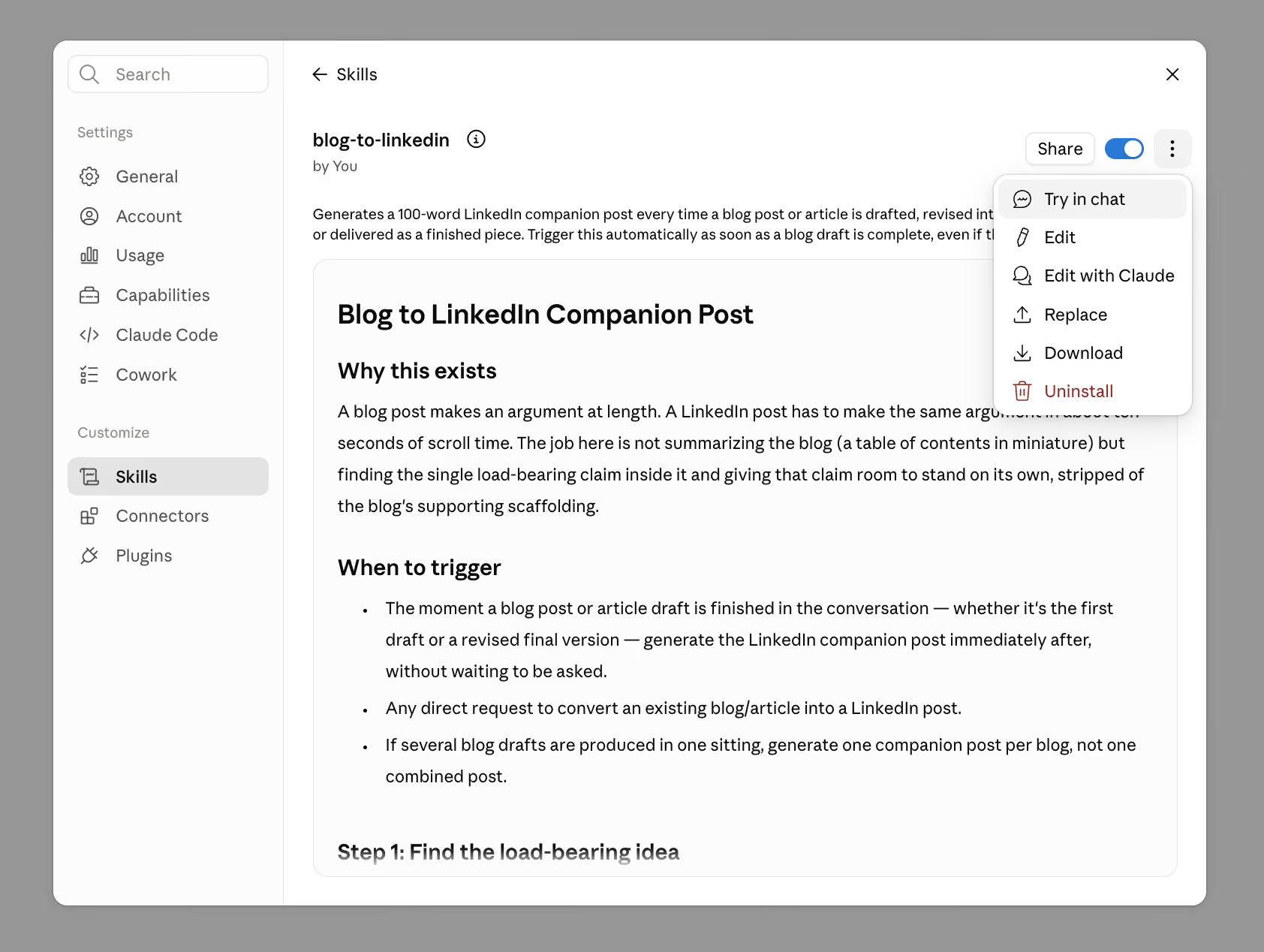
If Claude's response reflects the instructions written into the skill, the setup is working as intended. Claude's visible thinking process, when that option is turned on, confirms whether the skill actually loaded for that specific request.
Step 8: Save and Enable the Skill
Once testing looks right, save the skill from the editor panel, and confirm it shows as enabled inside the Skills list under Customize. A toggle switch controls whether each skill stays active, so disabling one temporarily never requires deleting it outright.
Skills created with Claude chat are saved by default. And skills already saved can still be reopened and edited later, so an early version never needs to be treated as final on the first attempt.
An Alternative Path: Recording a Skill Instead of Writing One
Claude for Mac offers a second route that skips typing altogether, though it currently works only for subscribers on Pro or Max, and separately for Team accounts, while Free and Enterprise users wait for broader support.
Rather than describing a task in words, a person simply performs it on screen, since Claude captures the activity together with any spoken narration in one continuous recording. To start a recording starts, click on the plus button inside the composer, followed by "Record a skill" from the menu that appears.
The first time this feature runs, you’ll need to approve screen recording and accessibility using the permissions dialog box that appears. macOS may also prompt a restart before recording begins on that device.
In addition, users can add spoken narration during the task to give Claude more context, like an explanation for why a particular step gets skipped on some days.
Recordings run for roughly ten minutes before stopping automatically, but you can always click "Done" earlier sends everything captured up to that point straight to Claude for review.
After a recording ends, Claude reviews it inside a Cowork task and proposes either a brand-new skill or an update to one that already exists. Read this carefully before saving, since the underlying content should get reviewed even when the process felt intuitive during recording.
Where Are Claude Skills Stored?
Every skill saved through Claude lives inside the Skills list under Customize, tied to the account that created it rather than to a single device. This means a skill built on a laptop shows up automatically on mobile or on a different browser, since the data is associated with a user account rather than local storage.
For Team and Enterprise plans, organization owners can provision skills at the organization level, pushing approved workflows out to every member automatically. Those centrally managed skills will appear inside each person's Skills list, but with settings controlled by an administrator instead of the individual.
What Can You Do with Claude Skills?
Custom skills can handle an enormous range of repeatable work once someone bothers to write them down.
- Company brand guidelines applied automatically to every document Claude creates
- Meeting notes formatted the same way, week after week, without repeating instructions
- New tasks created inside project tools such as Jira or Asana, following a team's existing naming convention
- Personal workflows automated for individual use, since no official team or business account is required
Anyone tired of retyping the same formatting instructions or explaining the same process to Claude every week can turn that habit into a skill instead.
Claude Skill Limitations
- Recording only works inside Cowork on Claude for Mac, leaving Windows users and anyone on the Free or Enterprise plans to build skills by writing instructions instead, a gap that should narrow over time
- Description fields cap out at two hundred characters, forcing real discipline when summarizing a nuanced task into a single trigger condition
- Skills cannot explicitly reference each other inside their instructions, even though Claude often ends up combining several relevant skills automatically during a single task
- Executable scripts attached to a skill should never hardcode passwords or API keys directly into the file, since that information should never be associated with shareable instructions
Preprogramming Instructions into AI LLMs is Key: How It Works with Gmelius
The idea behind Claude Skills extends well beyond Anthropic's own product, since teaching an AI assistant a fixed procedure once is always more effective than repeating the same instructions over and over. Most AI tools built for business now offer some version of preprogrammed instructions that steer how the underlying model behaves.
Gmelius offers this feature its AI Draft Assistant.
Inside its automation settings, custom prompts let users define tone preferences and specific rules, such as sharing a scheduling link whenever a contact requests a meeting. It can also learn from a custom knowledge base to produce reliable information.
That structure mirrors what a Claude Skill is meant to do, but inside the context of your communication hub. Using repeatable behavior, Gmelius allows users to automate most of their email functions and achieve inbox zero.


.avif)

.avif)

.avif)