



Google Workspace gives teams a wide range of tools for communication and collaboration, but Google Groups is often one of the most misunderstood or underused features. While many teams treat it as a simple mailing list, understanding how Google Groups work in practice helps reveal its real value for shared communication and access control.
Whether you’re a small team just getting started or a growing organization trying to bring structure to email communication, here are five strong reasons to set up Google Groups, plus guidance on when it’s the right tool for the job.
1. Centralize Communication Without Adding New Tools
One of the biggest challenges teams face is fragmented communication. Emails live in individual inboxes, decisions are buried in private threads, and important messages disappear when someone is out of office. Google Groups addresses this by letting you create a single group email address, such as support@, hr@, or marketing@, that reaches multiple people at once.
Instead of asking who should be CC’d or whether everyone saw a message, teams can send one email to the group and ensure the right people are included automatically. This model works well for internal teams like HR, IT, and Finance, as well as for project-based collaboration, cross-functional announcements, and external-facing addresses like info@ or partnerships@.
Beyond basic email distribution, many teams discover that there are several things they can do with Google Groups to create shared ownership and visibility without introducing new tools or workflows.
2. Reduce Inbox Clutter and Email Chaos
Inbox overload isn’t just about volume, it’s about poor structure. Long CC chains, reply-all storms, and duplicated conversations make it harder to focus on what actually matters.
Google Groups helps reduce this chaos by giving teams flexible delivery options. Each member can choose whether they want to receive every message, get a daily summary, read messages only in the group interface, or mute conversations entirely.
This allows each team member to control how much group communication enters their inbox, without losing access to the conversation itself.
This matters because it leads to fewer interruptions during focused work, less pressure to reply “just in case,” and a clearer separation between individual and team-level communication. For teams trying to reclaim attention and reduce email fatigue, this structure makes a noticeable difference.
3. Control Who Can Access, Post, and Participate
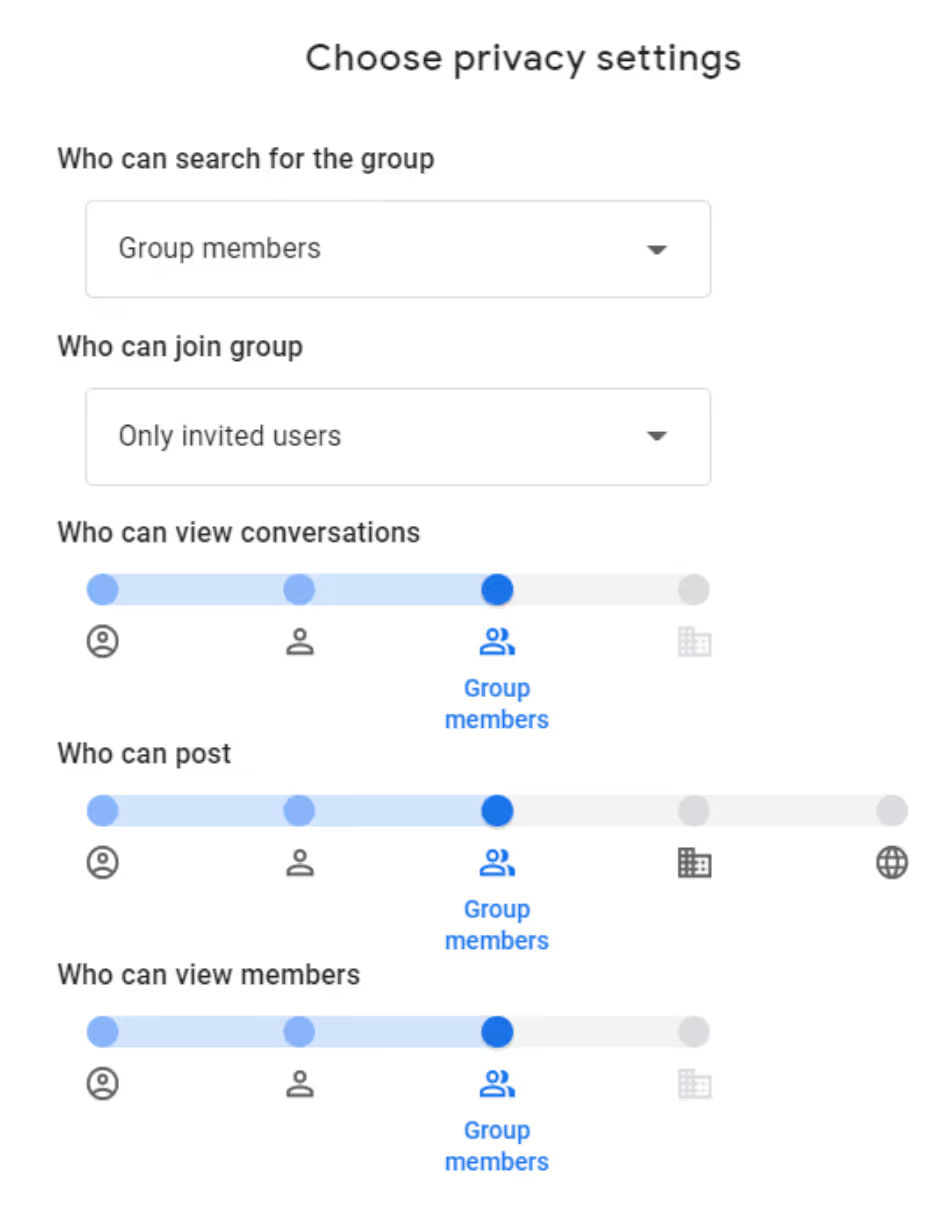
Not every conversation should be open to everyone, and Google Groups makes access control straightforward. Admins can define who can join a group, who can post messages, who can view conversations, and who can manage members and settings.
This makes it easy to create internal-only groups for employees, restricted leadership groups for sensitive discussions, announcement-only groups where only admins can post, or external groups that include partners or customers. All permissions are managed centrally, which reduces the risk of accidental oversharing or misrouted emails.
Following established Google Groups dos and don’ts when setting up these permissions helps teams avoid confusion and keep communication aligned as the group grows.
4. Build a Searchable Archive of Team Knowledge
Unlike private inboxes, Google Groups creates a shared, searchable archive of conversations. Every message, reply, and attachment can be accessed later by authorized members.
Over time, this turns Google Groups into a lightweight knowledge hub that captures decisions, explanations, and shared context as they happen.
This is particularly valuable for onboarding new hires, documenting processes, and supporting long-running projects. Teams can review past discussions to get up to speed, look up previous decisions or background, and avoid repeating the same questions over and over.
Instead of relying on memory or forwarding old emails, teams can search the group history and find what they need in seconds.
5. Create a Scalable Foundation for Team Collaboration
Google Groups is often the first step toward more structured collaboration. While it’s simple to set up, it establishes habits and patterns that scale as teams grow.
Groups can be used to manage access to Google Drive folders, act as the entry point for shared inboxes, and provide clarity around ownership and responsibility.
As email volume increases, having conversations grouped by function or purpose makes it much easier to introduce workflows, automation, or collaboration tools later on.
In practice, Google Groups helps teams move from everyone handling email their own way to a shared, predictable system.
Best Practices for Setting Up Google Groups
To get the most value from Google Groups, it’s worth following a few best practices:
- Name groups clearly using intuitive formats like support@company.com or hr-internal@company.com.
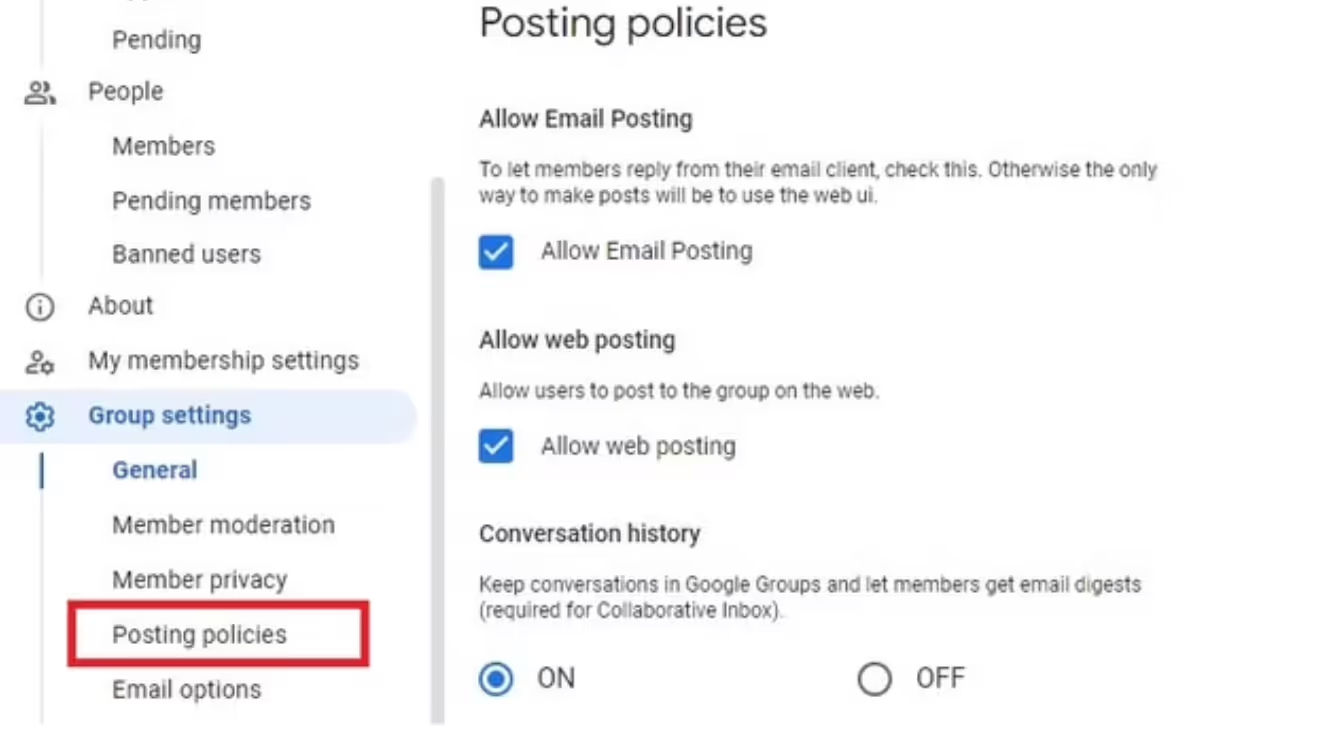
- Define posting rules early so everyone understands who can post and what the group is for.
- Set delivery preferences intentionally and encourage members to choose how they receive messages to avoid overload.
- Document usage guidelines in a short internal note so expectations are clear.
- Review groups regularly, remove inactive members, and archive unused groups to keep things organized.
When Google Groups Is the Right Choice
Google Groups works best when you need a shared email address, simple collaboration across multiple people, clear visibility into conversations, native Google Workspace integration, and minimal setup and ongoing maintenance.
It’s ideal for internal communication, lightweight external communication, and teams that are just starting to share responsibility.
For many organizations, it’s the simplest way to bring order to email without changing how people already work.
When Google Groups Isn’t Enough
As teams grow and email volume increases, many outgrow the limitations of Google Groups. While Groups is effective for basic shared communication, it doesn’t provide the structure needed to manage ownership, accountability, or performance at scale.
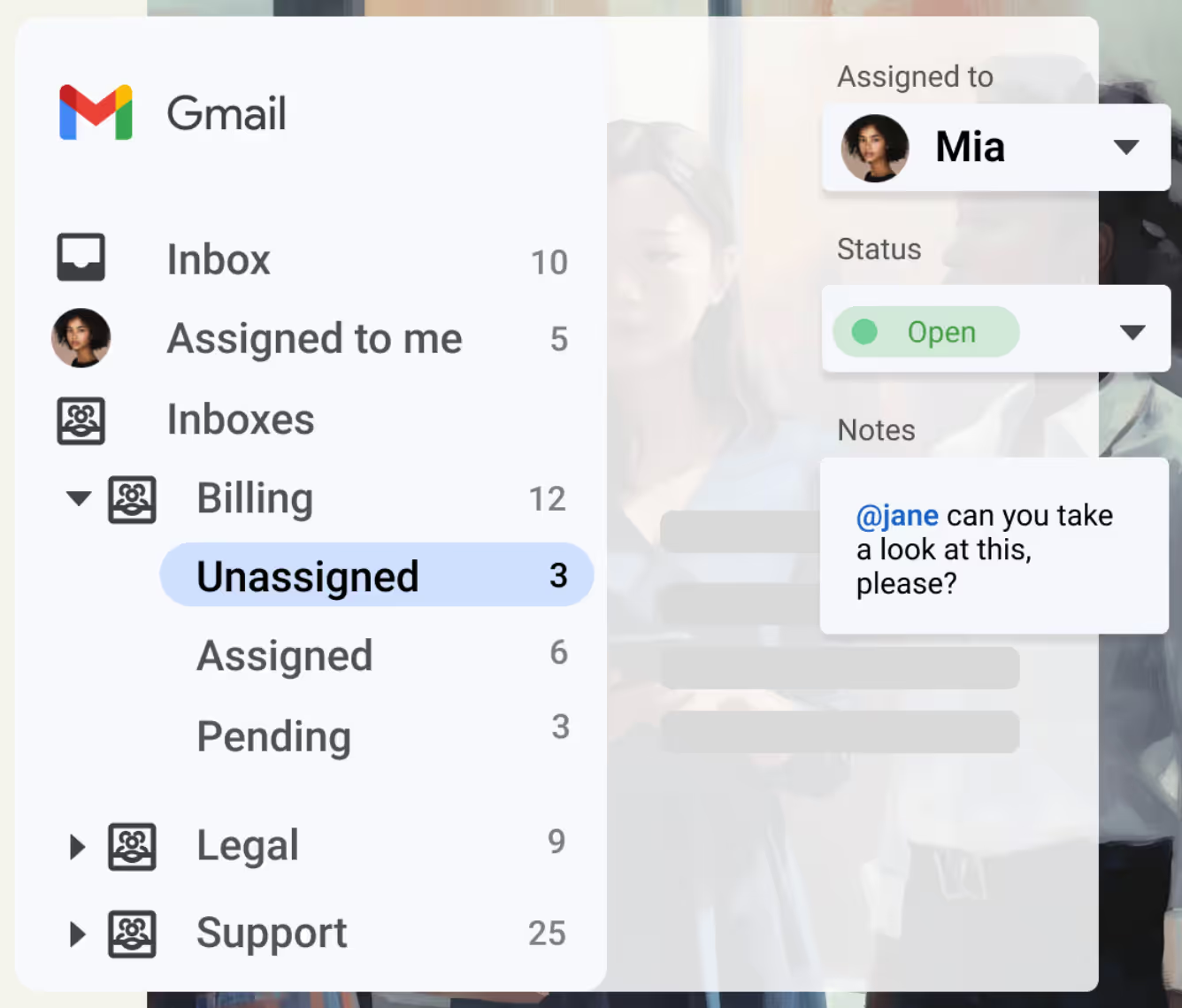
This is where tools like Gmelius come in. Built directly into Gmail and Google Workspace, Gmelius turns group emails into fully collaborative shared inboxes. Teams can assign conversations, add internal notes, prevent duplicate replies, automate workflows, and use AI-assisted responses, without leaving their inbox or changing how they work.
For many teams, Google Groups is the first step toward organized email. Gmelius becomes the next step when collaboration, visibility, and efficiency start to matter more.
Bottom Line
Google Groups is one of those tools that seems basic until you use it properly.
By centralizing communication, reducing inbox noise, preserving team knowledge, and laying the groundwork for scalable collaboration, Google Groups can significantly improve how teams work together inside Google Workspace.
If your organization relies heavily on email and struggles with visibility, ownership, or structure, setting up Google Groups is a smart and often overlooked first step.


.avif)
.avif)
.avif)
.avif)
.avif)