


How to Set Up Auto Reply for Gmail: Automatic Responses
If you’re still manually replying to “Just checking in” emails, you're burning hours every week.
Gmail auto replies can handle repetitive responses, out-of-office notices, and even rule-based replies automatically. The problem? Most people only use 10% of what’s possible.
This guide will walk you through everything you need to know about setting up auto replies in Gmail, from understanding the basics to implementing best practices for effective communication.
When Should You Use Auto Reply in Gmail?
Automated responses in Gmail provide several advantages that can greatly enhance your email management and overall communication strategy. By using Gmail's auto reply feature, you can save time with pre-written responses for various scenarios, such as out-of-office notices or frequently asked questions, ensuring prompt communication without manual effort. Here are the most common (and most valuable) use cases:
1. Out-of-office communication
This is the classic scenario. If you're unavailable for a period of time, Gmail’s auto reply ensures anyone who contacts you knows:
- When you’ll return
- Whether their message was received
- Who to contact in urgent situations
It sets expectations immediately, which reduces unnecessary follow-ups and protects your professional reputation.
2. Repetitive inquiries
If you frequently receive similar questions such as pricing requests, document links, scheduling instructions, onboarding steps, auto replies can eliminate hours of manual typing.
Instead of rewriting the same message repeatedly, you can:
- Send pre-approved responses instantly
- Maintain consistent messaging
- Reduce cognitive load during busy periods
This is particularly helpful for sales, recruiting, and operations teams handling recurring external communication.
%2010.19.52%E2%80%AFa.%C2%A0m..avif)
3. Lead intake confirmation
When a potential customer emails your team, silence creates friction.
An automatic confirmation reply can:
- Acknowledge receipt immediately
- Outline next steps
- Set expected response time
- Provide helpful resources
Even a simple confirmation improves perceived responsiveness and builds trust.
4. Support ticket acknowledgment
For support teams, first-response time directly impacts customer satisfaction.
An automated acknowledgment ensures:
- Every request is confirmed instantly
- Customers know their message was received
- You can define response windows clearly
This is especially valuable for shared inboxes where multiple team members manage incoming requests.
5. Internal routing and process automation
Auto replies can also support internal workflows.
For example:
- Confirming receipt of internal requests
- Sending process instructions automatically
- Directing teammates to the correct documentation
- Triggering label-based organization
When combined with filters, Gmail auto replies can function as lightweight workflow automation.
If you are looking for smarter automation, sign up for Gmelius and get 2x faster email responses.

Best Practices for Effective Auto Replies
To get the most out of Gmail’s auto reply feature, consider these best practices:
Craft clear and concise messages
Your auto reply should be straightforward and to the point. Avoid complicated language and provide clear information to help recipients quickly understand your message. This reduces the chance of follow-up questions. Check out this library of pre-made templates if you need some inspiration.
Personalize your auto replies
Whenever possible, personalize your auto replies to create a better experience for the recipient. This could mean addressing them by name, customizing the message to their specific inquiry, or providing additional relevant information. Personalization makes auto replies feel more thoughtful and less generic.
Consider timing and frequency
Be mindful of when and how often auto replies are sent. Too many auto replies can be annoying and make your messages look spammy. Adjust the timing and frequency of your responses to avoid this.
Set up a vacation responder
If you’re going to be out of the office for an extended time, use Gmail’s vacation responder to automatically notify senders of your unavailability. This allows you to provide a custom response while specifying who will receive it and when it will be triggered.
Setting Up Auto Replies in Your Gmail Account
Setting up targeted auto-replies using Gmail templates and filters
Now that you understand the benefits and best practices, let's dive into the step-by-step process of setting up auto replies in your Gmail account.
1. Enabling the auto-reply feature
- Open Gmail and click on the gear icon (Settings) in the top right corner.
- Click on "See all settings" to access Gmail’s full settings menu.
- In the settings menu, go to the "Advanced" tab.
- Click "Enable" and then "Save Changes" to activate the templates feature. This step is crucial for creating and managing auto replies using filters.
2. Creating an effective auto reply message
- Compose a new email as you normally would.
- Type out the message you want to use as your auto reply. Be sure to include:
- A clear and concise subject line.
- A polite greeting.
- A brief, informative message.
- A professional closing. - Once your message is ready, save it as a template by clicking on the three dots in the bottom right corner of the email window, selecting "Templates," and then "Save draft as template."
Crafting an effective auto reply message is key to ensuring your communications are both professional and helpful. If you're out of ideas, we've shared 50 examples of automated email responses to inspire you.
3. Using filters to send auto replies
Filters allow you to specify which incoming emails will trigger your auto reply. Here’s how to set them up:
Creating a filter
- In Gmail, click on the Search bar and then click on the “Show search options” icon.
- Set the rules for your filter, such as emails from a specific sender, those with a particular subject line, or even those containing certain keywords. You can also specify blocked addresses to ensure unwanted emails do not clutter your inbox.
- After configuring your criteria, click “Create filter.”
Sending the auto reply using a filter
- In the filter creation menu, select the action "Send template."
- Choose the auto reply template you created earlier.
- Click "Create filter" to finalize your settings.
Your auto reply will now be automatically sent to any emails that match the filter criteria, ensuring that important messages are promptly addressed.
Setting up an Out-of-Office (OoO) auto reply in Gmail
When you’re away from work, it’s crucial to keep your contacts informed and maintain seamless communication. Gmail’s out-of-office auto reply, also known as the “Vacation Responder” or vacation response, is a simple yet effective tool to manage this. Here’s how you can set it up:
1. Accessing the vacation responder
- Open Gmail and click on the gear icon in the top right corner, then select "See all settings."
- In the settings menu, navigate to the "General" tab.
2. Configuring the vacation responder
- Scroll down to find the "Vacation responder" section.
- Check the box next to "Vacation responder on" to enable the feature.
3. Setting the time frame
- Enter the start date for your auto reply in the "First day" field. This is the day when Gmail will begin sending your auto response.
- (Optional) If you know when you'll be back, you can set an end date by checking the "Last day" box and entering the date. Gmail will automatically stop sending the auto reply after this date.
4. Crafting your Out-of-Office message
- In the "Subject" field, type a clear and concise subject line, such as "Out of Office" or "Away Until [Date]."
- In the "Message" field, compose the body of your auto reply. Be sure to include:
- A polite greeting.
- A brief message explaining your absence.
- The date when you'll return or when the recipient can expect a follow-up.
- Contact information for someone who can assist in your absence, if applicable.
- A professional closing.
5. Additional settings and finalizing
- If you only want your auto reply to be sent to people in your contacts list, check the box next to "Send responses only to people in my Contacts." This can help prevent your auto reply from going out to mailing lists or unknown senders.
- Once you've configured everything, click "Save Changes."
Your out-of-office auto reply is now set up and will automatically be sent to anyone who emails you during the specified time frame. This ensures that anyone trying to reach you knows you’re away and when you’ll be back, helping to manage expectations and maintain professional communication.
Setting Up Auto Replies Across your Google Workspace Domain
We've seen that Gmail offers some ways to set up auto-replies. Now, these can be pretty time-consuming to create and challenging to maintain when you need to configure such automation for a whole team, department or even company. For those looking to take their Gmail auto replies and email management game to the next level, Gmelius offers a full email automation suite built for Gmail and Google Workspace customers.
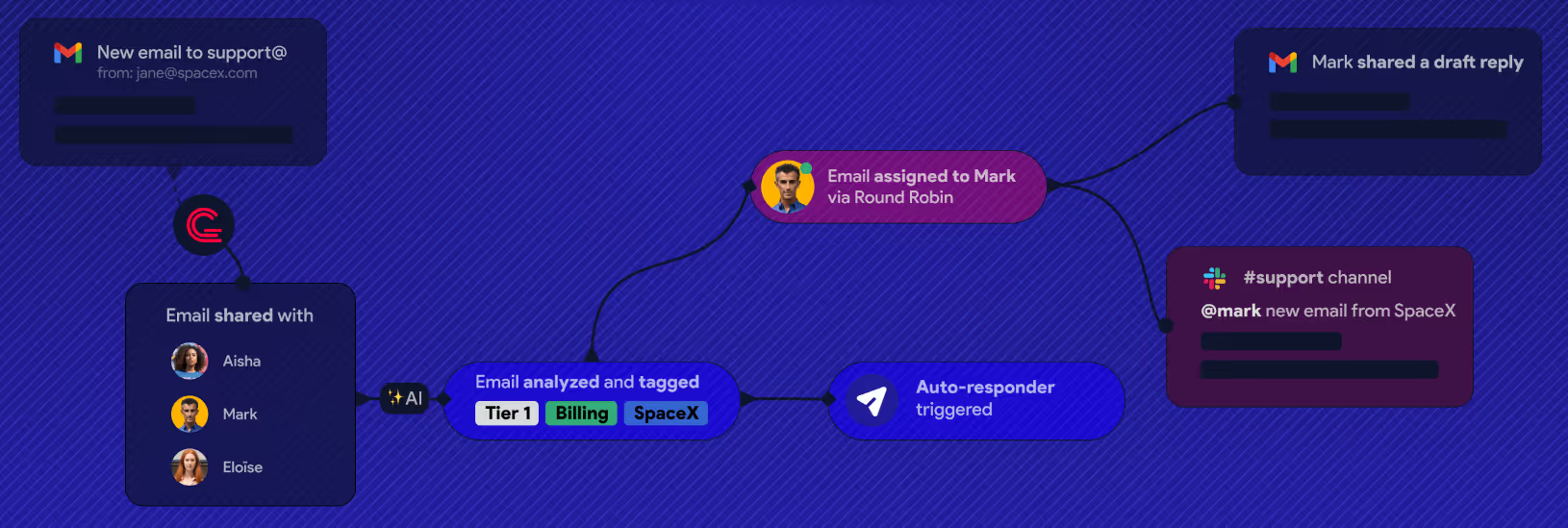
With Gmelius, you can create sophisticated automation workflows that match your team needs and are centralised, making their whole management easy in case of turnover, migrations, etc.
With Gmelius, you can create sophisticated workflows such as:
- Sending targeted auto-replies based on various criteria.
- Categorizing emails with Gmail labels or tags.
- Assigning conversations to specific team members.
- Enforcing Service Level Agreements (SLAs).
Gmelius is used daily by tens of thousands of businesses which require a more robust email management system beyond what Gmail's native features offer.
Frequently Asked Questions About Gmail Auto Replies & AI Automation
What are the best auto-reply tools for Gmail?
Gmail’s built-in vacation responder is a good start. But for dynamic, team-based workflows and smart replies, Gmelius is one of the best. It allows rule-based automation, team collaboration, and proactive AI response generation, all inside Gmail.
Is it possible to set conditional auto replies in Gmail?
Natively, Gmail allows basic filters to trigger template replies. However, if you want to set truly conditional replies (like based on email category, customer status, or SLA) Gmelius enables this with advanced automation rules.
Can shared inbox tools like Gmelius automate replies across a team?
Yes. Gmelius lets you automate replies across a shared Gmail inbox, assign emails to teammates, and enforce response SLAs. It ensures consistency and speed in how your team handles incoming messages.
Can AI organize and prioritize my Gmail inbox?
AI-powered tools like Gmelius can auto-tag, categorize, and prioritize incoming emails using smart rules. This means important messages rise to the top, and clutter is automatically sorted away, saving hours of manual triage.
Can Gmelius help automate email replies in Gmail?
Absolutely. Gmelius includes an AI Reply Assistant that detects emails needing attention and drafts smart replies automatically. It works within Gmail, making it easy to review and send with just a click, no prompting needed.
A Few Concluding Words
Gmail’s auto reply feature is a powerful tool for improving email management and communication efficiency. By following these steps and best practices, you can easily set up and optimize auto replies in your Gmail account.
Whether you want to save time, maintain professionalism, or handle high volumes of emails more effectively, auto replies can be a valuable part of your communication strategy. For even greater control and customization, consider using Gmelius to further enhance your auto reply strategy.
With the right setup, auto replies can become a key asset in your digital communication toolkit.
Enhance your email efficiency and start optimizing your communication strategy today with Gmelius.


.avif)

.avif)
.avif)
.avif)